Labels_
Assign customizable labels to your Appwrite project to categorize and filter projects within an organization.
2 min read
Labels are short alphanumeric tags you assign to a project. Use them to categorize your projects and filter them within an organization, for example by environment (production, staging), team, or region.
Manage in the Console
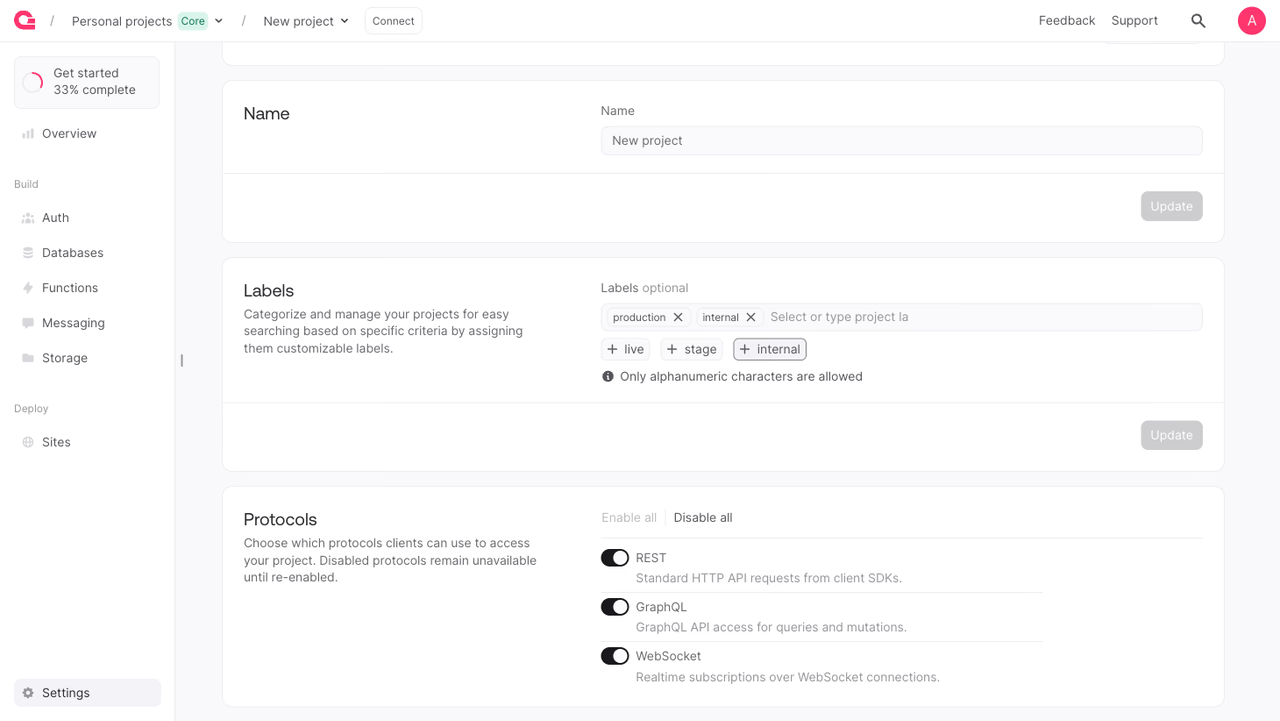
To manage labels from the Appwrite Console:
- Navigate to your project.
- Open the Settings section. The Labels card is on the Overview tab.
- In the Labels field, type a label and press Enter, or select one of the suggested labels. Labels may contain only alphanumeric characters.
- Click Update to save your changes.
Manage with a Server SDK
You can also manage project labels programmatically using a Server SDK.
The API key used for this call needs the project.write scope.
Update labels
The labels array replaces the project's existing labels, so include every label you want to keep in each call. A project can have up to 1000 labels, each up to 36 alphanumeric characters long.
Labels have no dedicated read endpoint. Call get to fetch the project and read its labels field.
const result = await project.get();console.log(result.labels); // ['production', 'eu']Benefits
- Organize at scale. Group related projects with shared tags such as environment, team, or region, so large organizations stay navigable.
- Faster filtering. Find the projects you need by filtering an organization on its labels instead of scanning the full list.
- Repeatable provisioning. Apply a consistent labeling scheme across projects from a script, keeping your organization tidy without manual Console work.
Was this page helpful?
Share what worked or what we should fix. Once approved, our agents automatically apply suggested updates to the docs.