Quick start_
Create your first native PostgreSQL database in the Appwrite Console, run your first queries in the SQL editor, and connect with psql.
2 min read
You can create a PostgreSQL database and run your first query in a few minutes.
Create a database
- In your project, go to Databases.
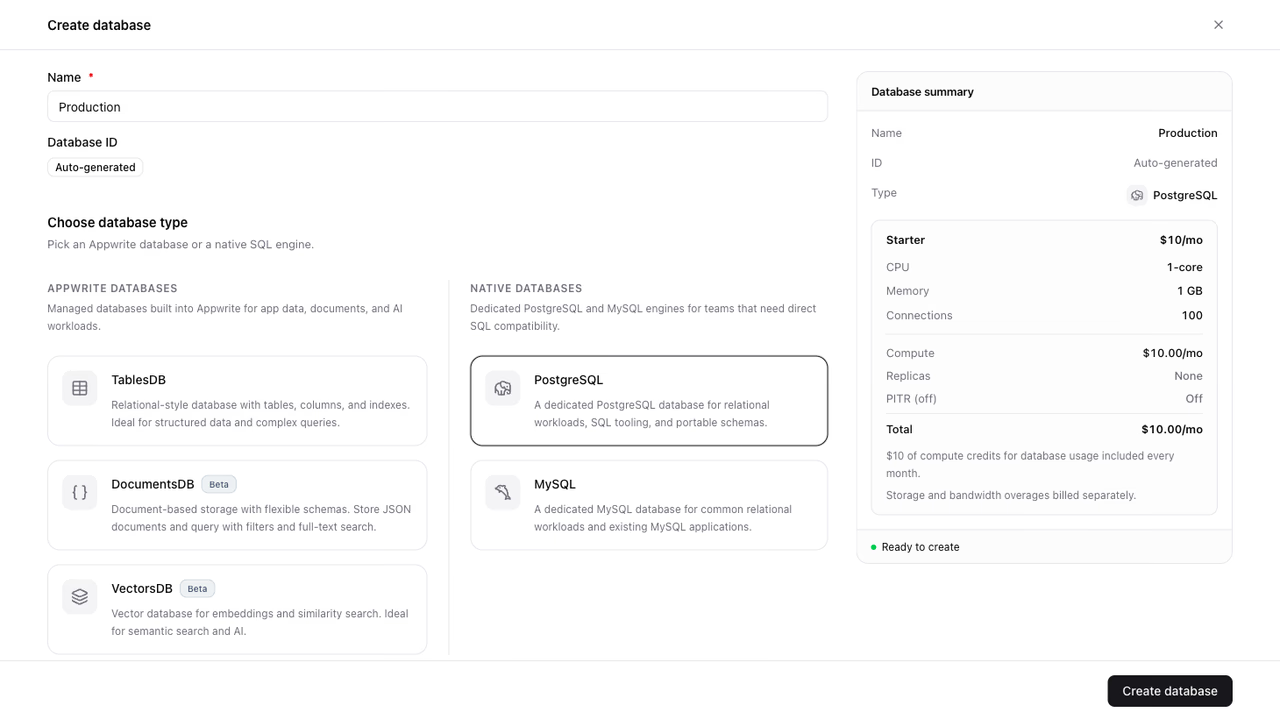
- Click Create database.
- Give your database a name, and optionally a custom database ID.
- Under Choose database type, select PostgreSQL from the Native databases group.
- Under Specifications, select your preferred tier.
- Optionally configure Read replicas and Point-in-time recovery (PITR). You can change both later.
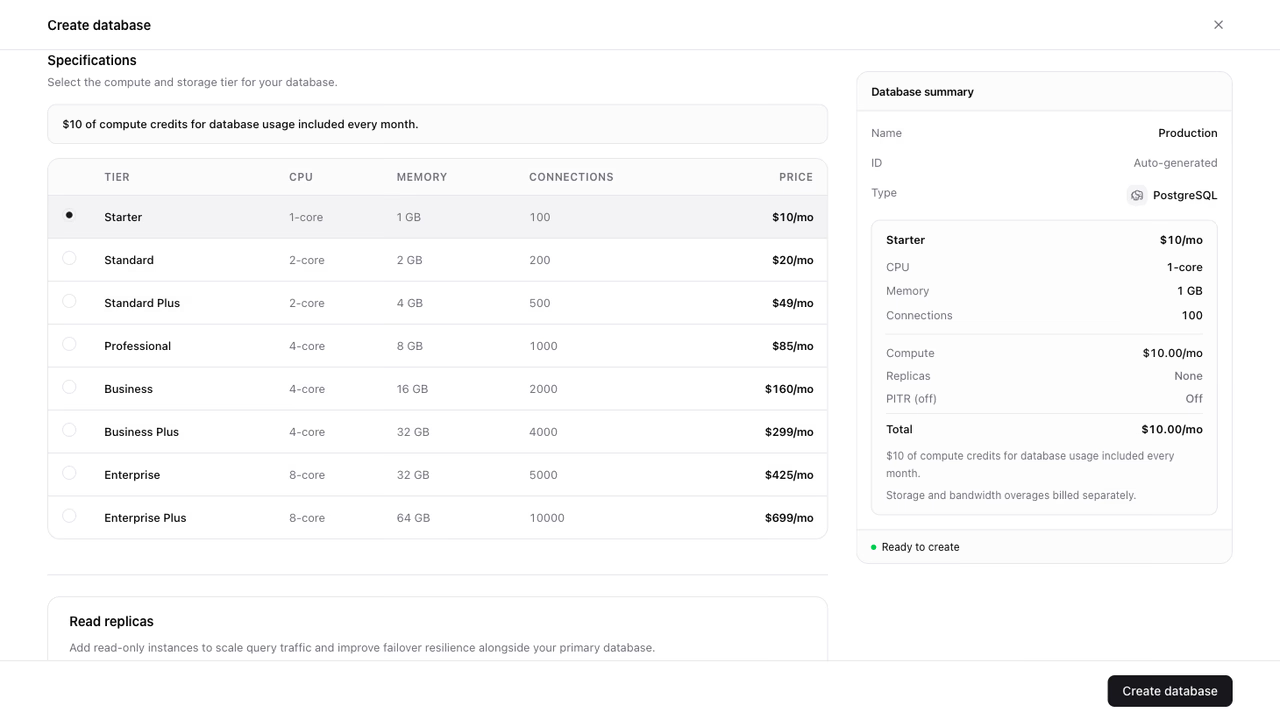
- Review the database summary and click Create database.
Your database starts provisioning and becomes ready shortly after. You land in the SQL editor once it is created.
Run your first queries
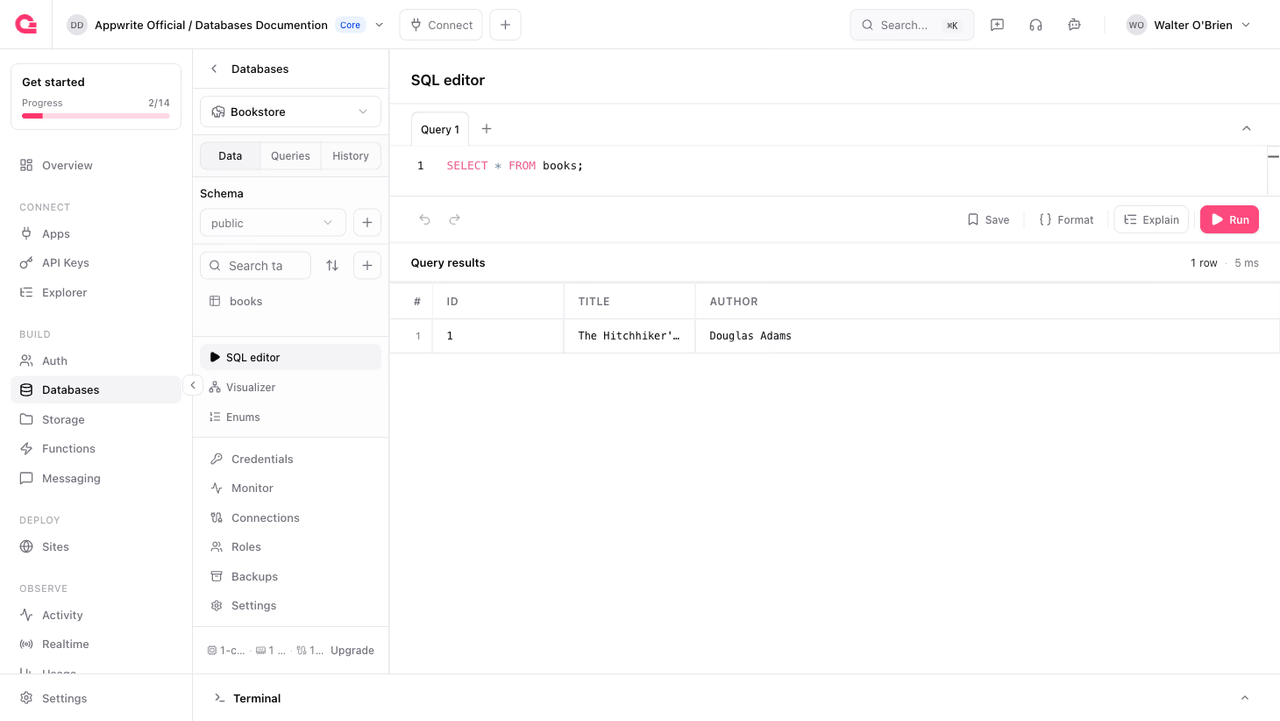
The SQL editor tab gives you an editor with formatting, query explain, and a results panel, without leaving the browser.
Create a table, insert a row, and read it back:
CREATE TABLE books (    id SERIAL PRIMARY KEY,    title TEXT NOT NULL,    author TEXT NOT NULL);
INSERT INTO books (title, author)VALUES ('The Hitchhiker''s Guide to the Galaxy', 'Douglas Adams');
SELECT * FROM books;
Get your connection details
To connect from outside the Console:
- Open your database and click Credentials.
- The Details tab shows the host, port, username, password, and database name.
- The DSN, .env, Prisma, Drizzle, and psql tabs have ready-made snippets for each workflow.
Connect with psql
Copy the command from the psql tab of the credentials dialog, or build it from the details:
psql -h <host> -p 5432 -U admin -d <database>Enter the password when prompted. You can run the same queries from your terminal that you ran in the SQL editor, or connect from your application with any PostgreSQL driver. See Connections for driver examples.
Next steps
Was this page helpful?
Share what worked or what we should fix. Once approved, our agents automatically apply suggested updates to the docs.