Connections_
Connect to your PostgreSQL database with psql or any standard driver. Retrieve connection details and rotate the primary password.
3 min read
A native PostgreSQL database exposes a PostgreSQL endpoint over TLS. You connect to it the same way you would connect to any PostgreSQL server: with psql, any driver in any language, or any ORM.
Get connection details in the Console
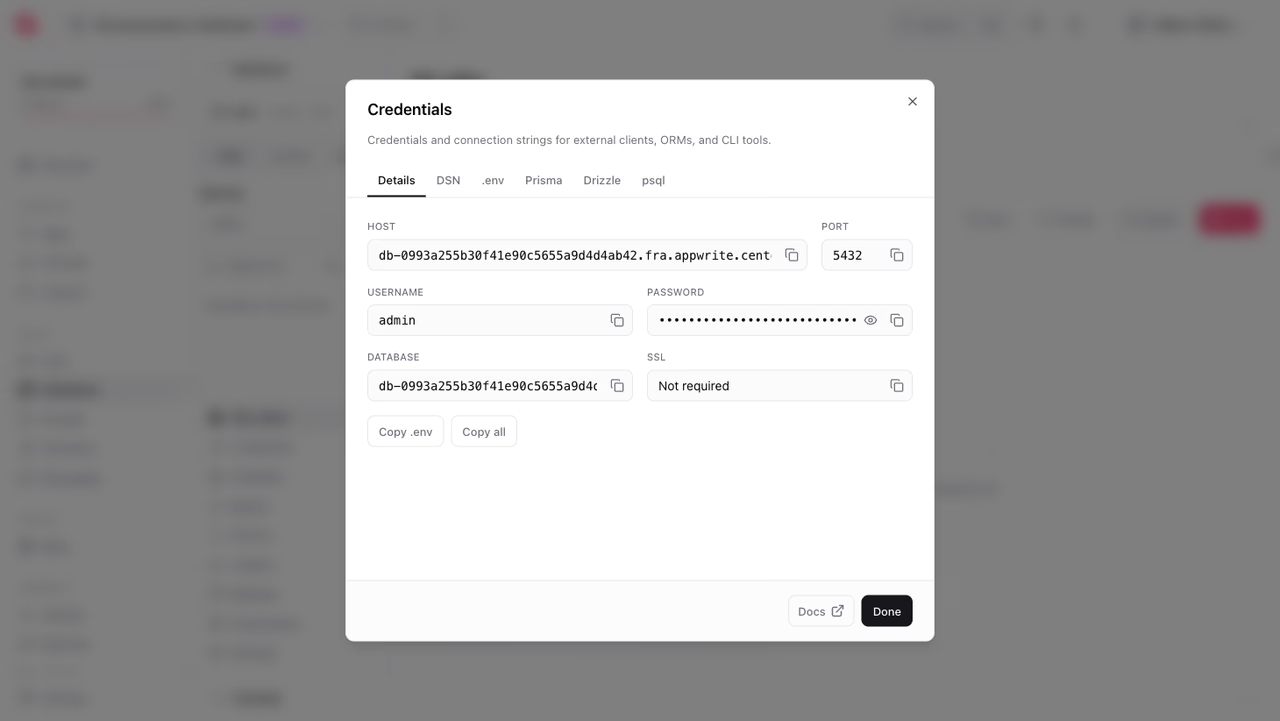
The fastest way to connect is through the Appwrite Console:
- In your project, go to Databases and select your PostgreSQL database.
- Click Credentials to open the credentials dialog.
- Copy the individual values from the Details tab, or switch to the DSN, .env, Prisma, Drizzle, or psql tab for a ready-made snippet.
- Paste it into
psql, your ORM, or your database client.
Use the API flow below when you need to fetch connection details from automation or inject them into your deployment pipeline.
Get connection details with the API
The connection details are returned on the database object itself. Fetch the database with an API key that has the databases.read scope:
The response includes the connection fields alongside the database configuration:
{ "$id": "<DATABASE_ID>", "name": "main", "engine": "postgresql", "version": "18", "status": "ready", "hostname": "db-<hash>.<region>.appwrite.center", "connectionPort": 5432, "connectionUser": "admin", "connectionPassword": "<password>", "connectionString": "postgresql://admin:<password>@db-<hash>.<region>.appwrite.center:5432/<database>"}The primary user is admin and the database name is generated per database.
Connect with psql
Pass the connection string, or the individual values, to psql. The Console credentials dialog also has a psql tab with the command ready to copy.
psql "postgresql://admin:<password>@db-<hash>.<region>.appwrite.center:5432/<database>"Or with individual flags:
psql -h db-<hash>.<region>.appwrite.center -p 5432 -U admin -d <database>Rotate the primary password
If your password is compromised, or your security policy requires regular rotation, you can issue a new password for the primary user. The change is applied atomically in the engine, and the response carries the new connection details. Existing sessions stay alive until they disconnect, then have to authenticate with the new password. The API key needs the databases.write scope.
Database roles
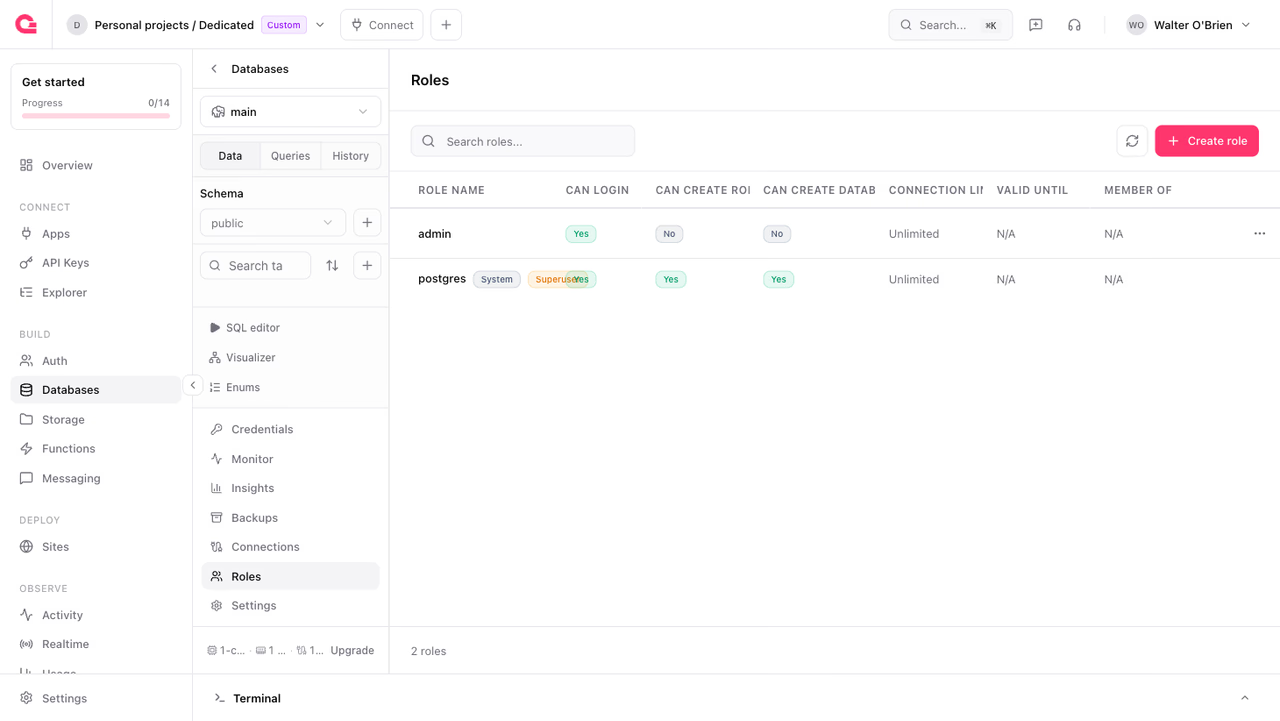
The primary admin role owns the default database. For applications that need narrower access, such as a read-only reporting user or a write-only ingestion user, create additional PostgreSQL roles from the Roles tab of your database in the Console. The list shows each role's login, role-creation, and database-creation privileges, its connection limit, and its role memberships.
Roles are standard PostgreSQL roles, so GRANT and REVOKE statements in the SQL editor or psql work on them like on any PostgreSQL server. The postgres superuser is managed by Appwrite and cannot be modified.
TLS
Connections on Appwrite Cloud are encrypted with TLS, terminated at the edge and forwarded to your database over the internal network. The connection string from the credentials dialog carries the right SSL settings for your environment, so drivers need no extra configuration.
For IP allowlists and other network controls, see network security.
Connecting from an application
There is nothing Appwrite-specific about the driver setup. A few example snippets:
Set DATABASE_URL to the connection string from the credentials dialog. Once you can run a query, you can use any tool that talks the PostgreSQL wire protocol: pgAdmin, DataGrip, your ORM of choice, your migration tool of choice. Appwrite gets out of the way.
Was this page helpful?
Share what worked or what we should fix. Once approved, our agents automatically apply suggested updates to the docs.