CSV exports_
Export VectorsDB documents to a CSV file. Share embeddings and metadata as a portable dataset without writing custom scripts.
4 min read
Appwrite's CSV export feature lets you export documents from a VectorsDB collection to a CSV file. This is useful for reporting, sharing a dataset with your team, creating custom backups, or handing embeddings and their metadata off to other tools.
Exported columns
A VectorsDB collection has a fixed schema, so every export has the same shape. Each row carries the document's system fields together with the two collection attributes:
| Column | Type | Description |
|---|---|---|
$id | string | The document ID. |
embeddings | JSON | The embedding vector, serialized as a JSON array of numbers. |
metadata | JSON | The metadata stored alongside the vector, serialized as a JSON object. |
System columns like $id, $createdAt, and $updatedAt are included automatically. Because embeddings is the full vector for each document, exported files can be large for high dimension collections.
An example of exported data, where each embeddings value is the full vector for that document:
$id,embeddings,metadatadoc-1,"[0.12,0.84,0.33,0.57]","{""title"":""Hamlet"",""year"":1601}"doc-2,"[0.2,0.1,0.6,0.1]","{""title"":""Macbeth"",""year"":1606}"doc-3,"[0.5,0.5,0.5,0.5]","{""title"":""Othello"",""year"":1603}"Export configuration
Before exporting, you can configure several options to control the output format and contents.
Apply filters
You can pass queries to export only the documents you need rather than the whole collection. This is useful when you want a subset of your data for a specific use case.
Select columns
You can choose which columns to include in the export. By default, all columns are exported. Selecting specific columns creates more focused datasets, for example exporting only metadata when you don't need the raw vectors.
Custom delimiter
You can set a custom delimiter for the CSV file. While commas are standard, you can use tabs, semicolons, or other delimiters based on the tools you import into.
Common delimiters:
- Comma (
,): Standard format, compatible with most tools - Tab: Useful when your data contains many commas
- Semicolon (
;): Common in European Excel versions - Pipe (
|): Useful when your data contains many semicolons
Header row
You can choose whether to include a header row with column names. Headers make the data easier to read in spreadsheets, but some import tools work better without them.
Timestamps
The $createdAt and $updatedAt columns are exported in ISO 8601 format, making them compatible with most spreadsheet and database tools.
Permissions
If document security is enabled for your collection, the $permissions column is included in the export. Permission strings are formatted as comma-separated role definitions within quotes.
$id,embeddings,$permissionsdoc-1,"[0.12,0.84,0.33,0.57]","read(""any""),update(""user:user-123"")"doc-2,"[0.2,0.1,0.6,0.1]","read(""team:team-456""),update(""team:team-456"")"The roles used are API strings that can be found in the permissions documentation.
Run the export
Start an export with POST /v1/migrations/csv/exports and an API key that has the migrations.write scope. The request takes the databaseId and collectionId you are exporting, plus a filename for the file it writes. The columns, queries, delimiter, enclosure, escape, and header parameters described above are all optional.
Background processing
Exports run as background jobs, so a large collection doesn't block your workflow. Appwrite emails you a download link when the export finishes, unless you pass notify as false.
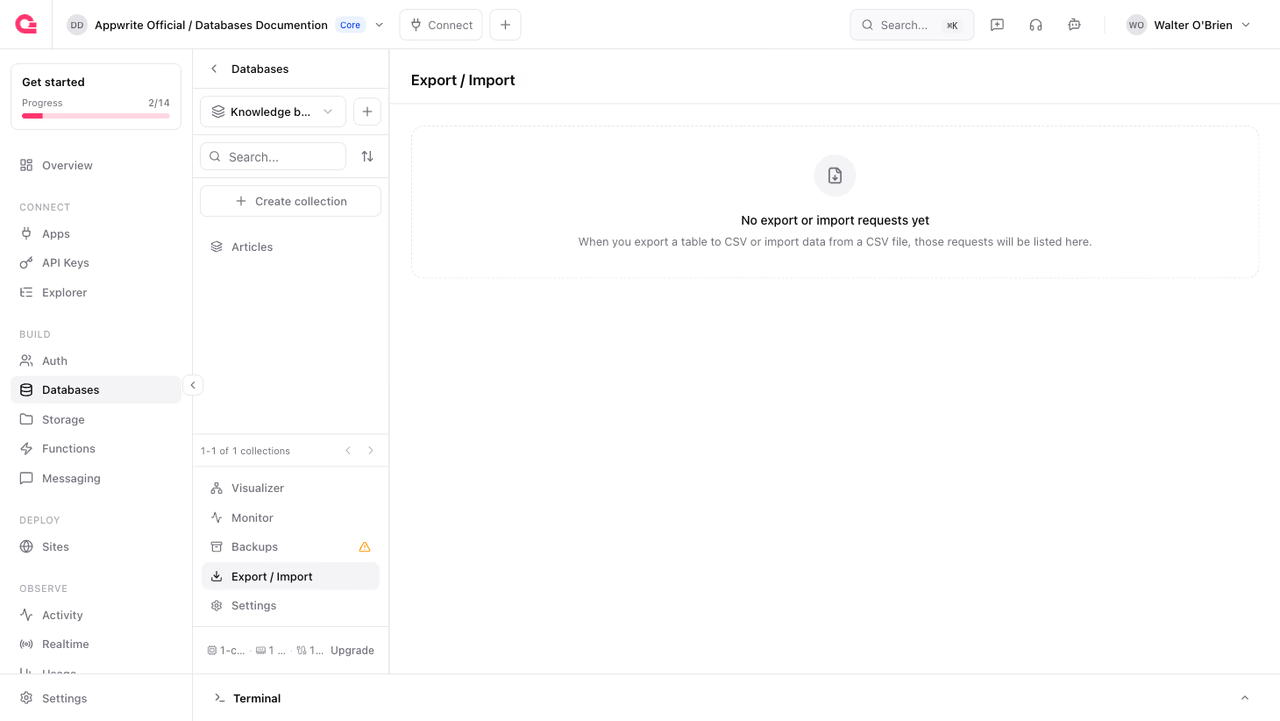
Open the database and select the Export / Import tab to watch the job and download the file once it completes.
Use cases
CSV exports are useful for many common workflows:
- Reporting: Generate reports for stakeholders who need data in spreadsheet format
- Data sharing: Share an embeddings dataset with teammates
- Analytics hand-off: Provide vectors and metadata to analysts using other tools
- Custom backups: Archive specific data subsets for record-keeping
- Migration preparation: Extract data to move it into another system
Best practices
To get the most out of CSV exports:
- Filter your data: Export only the documents you need to reduce file size and processing time
- Select specific columns: Export only
metadatawhen you don't need the raw vectors, since high dimensionembeddingscolumns make files much larger - Choose appropriate delimiters: Use tabs or semicolons if your data contains many commas
- Consider header requirements: Include headers for human readability, exclude them for automated imports
Additional resources
- CSV imports - Import data from CSV files
- Documents - Create, read, update, and delete documents
- Permissions - Configure document-level security
- Backups - Automated backup policies
Was this page helpful?
Share what worked or what we should fix. Once approved, our agents automatically apply suggested updates to the docs.