Backups_
Learn how to back up and restore your VectorsDB databases, ensuring data security and seamless recovery.
3 min read
Appwrite Backups enable seamless, encrypted database backups. All backups are hot backups, ensuring zero downtime and fast recovery.
You manage backups from a database's Backups tab, where you can automate backups with policies or create manual backups on demand. A backup captures the database along with its collections, documents, and embeddings.
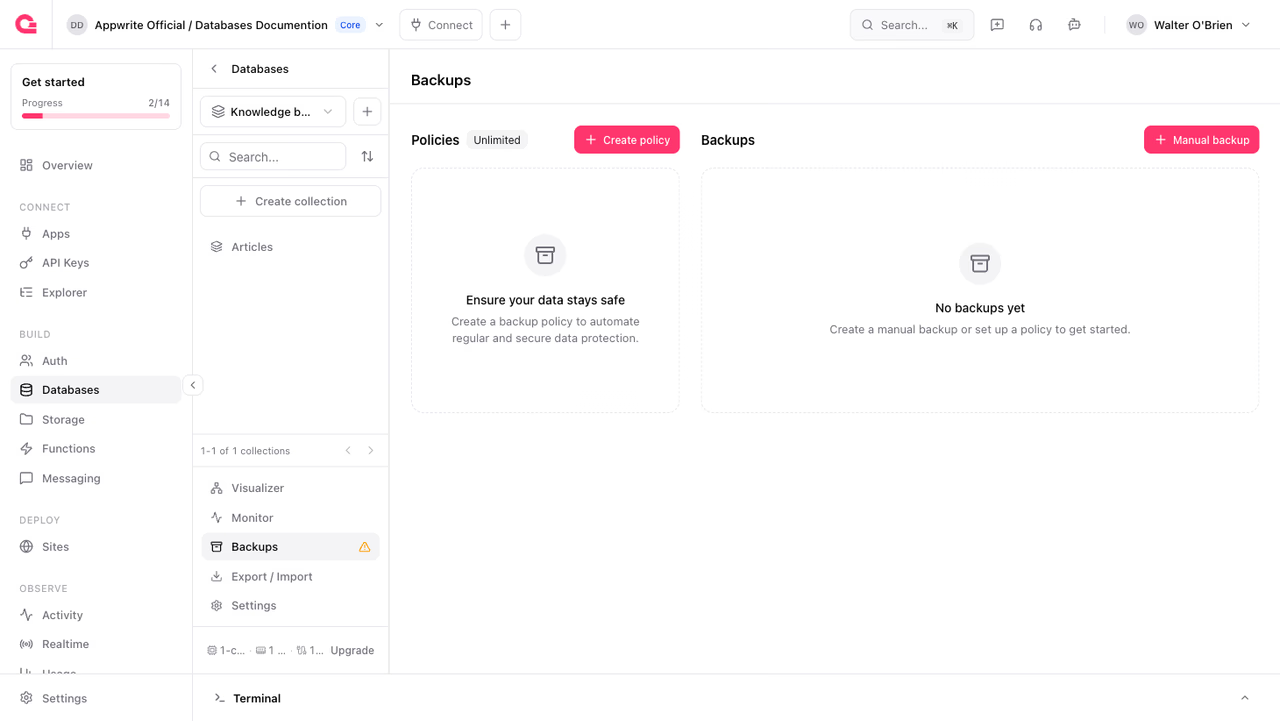
Backup policies
Backup policies automate your backups on a schedule. To create one, open your database's Backups tab and click Create policy, then choose a preset policy or add a custom one.
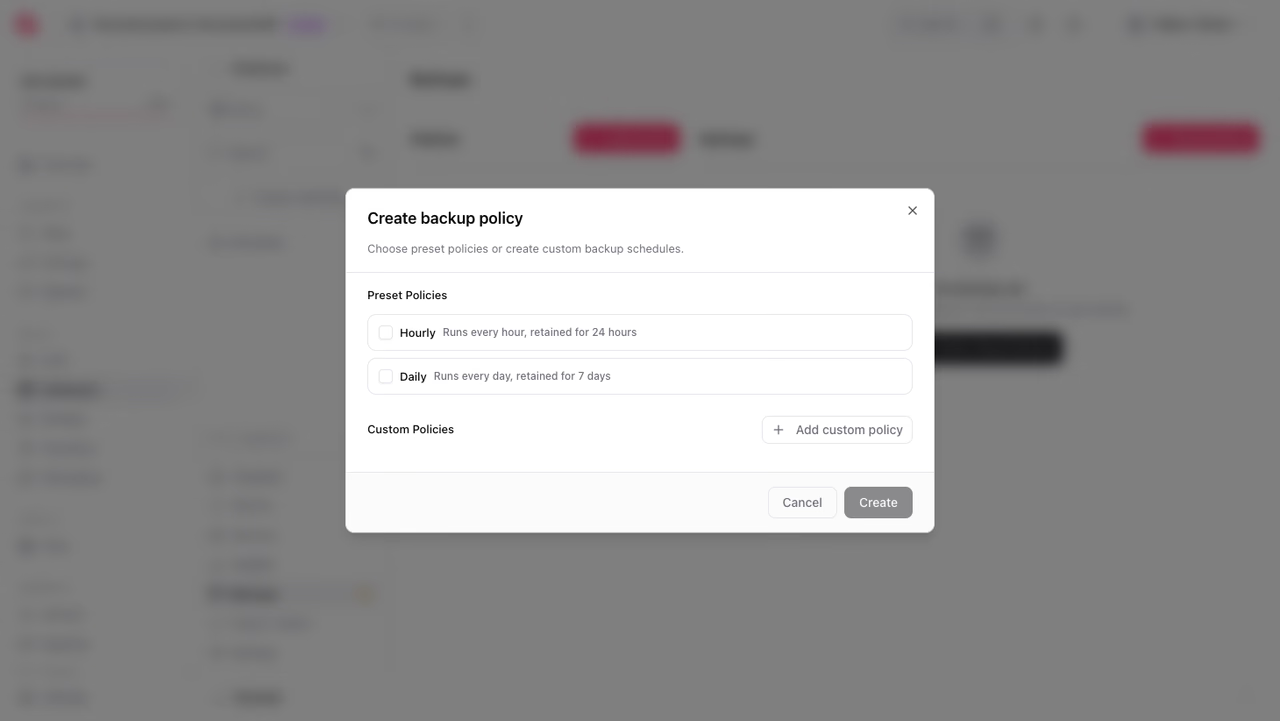
The available options depend on your plan:
- On the Pro plan, you get a Daily backup policy retained for 7 days.
- On the Enterprise plan, you get access to additional preset policies and custom policies, where you control how often backups run and how long they are retained.
Click Create to save the policy. Your database is now set up for automated backups.
Manual backups
You can create an on-demand backup whenever necessary. In your database's Backups tab, click Manual backup, then click Create.
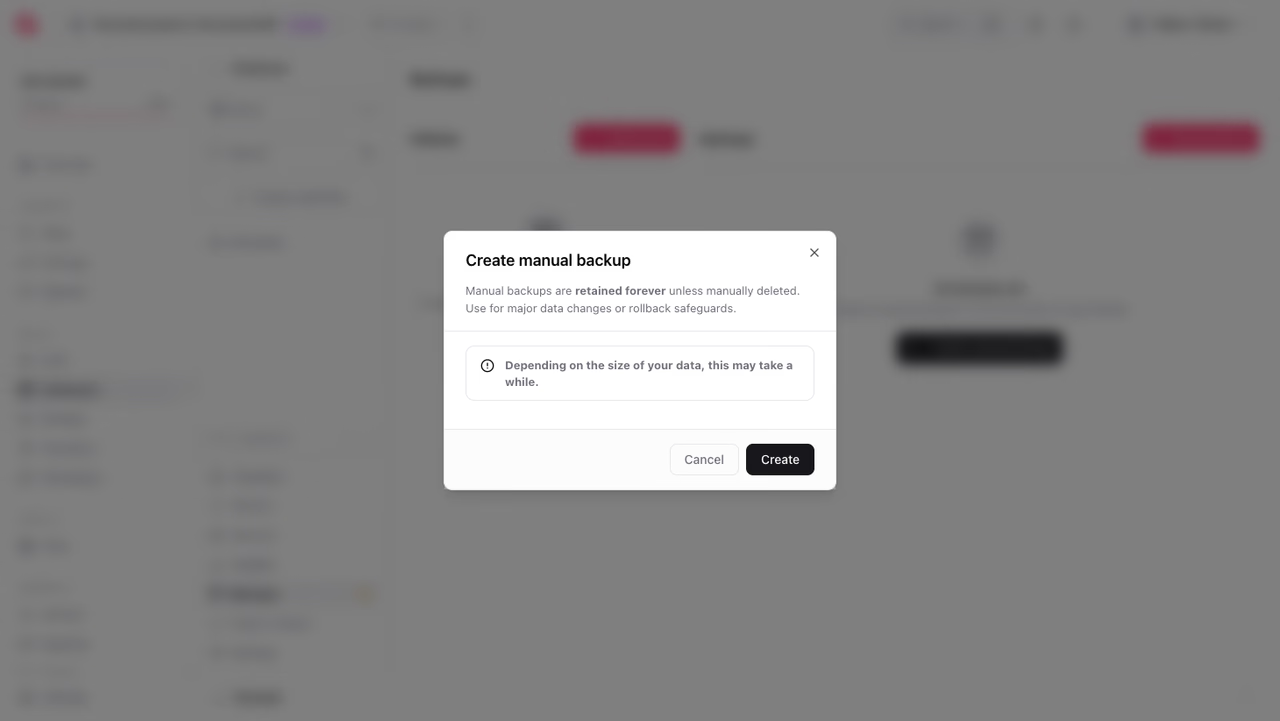
Manual backups are retained until you delete them. Depending on the size of your database, the backup may take some time to complete. You can monitor its progress in the backups list.
Restoring backups
To restore a database, you need an existing backup.
- Open your database's Backups tab.
- In the backups list, open the Actions menu for the backup you want to restore.
- Click Restore.
- Enter a name for the new database and an optional database ID.
- Click Restore.
Depending on the size of your database, the restoration may take some time. The restore creates a new database from the backup, leaving the original untouched.
Backup security & performance
All backups created with Appwrite are:
Encrypted: All backups are securely encrypted to ensure your data remains protected at all times.
Remotely stored: Backups are stored in a remote location, providing an additional layer of security and ensuring your data is always recoverable.
Hot backups: Backups are hot, meaning they occur with zero downtime, allowing you to recover data quickly without interrupting your projects and services.
Best practices
To ensure your backups are robust and effective, consider the following best practices:
Schedule regular backups: Add backup policies based on the frequency of database changes. Daily backups are often sufficient for most use cases.
Retain critical backups longer: Use custom policies with longer retention to keep backups of critical data for extended periods, ensuring historical records are available when needed.
Optimize backup policies based on data sensitivity: Tailor your backup frequency and retention settings according to the sensitivity and importance of the data.
Was this page helpful?
Share what worked or what we should fix. Once approved, our agents automatically apply suggested updates to the docs.