Build an intelligent chatbot with ChatGPT and Appwrite Functions_
Learn how to use an Appwrite Function Template to create an interactive bot using GPT-3.5.

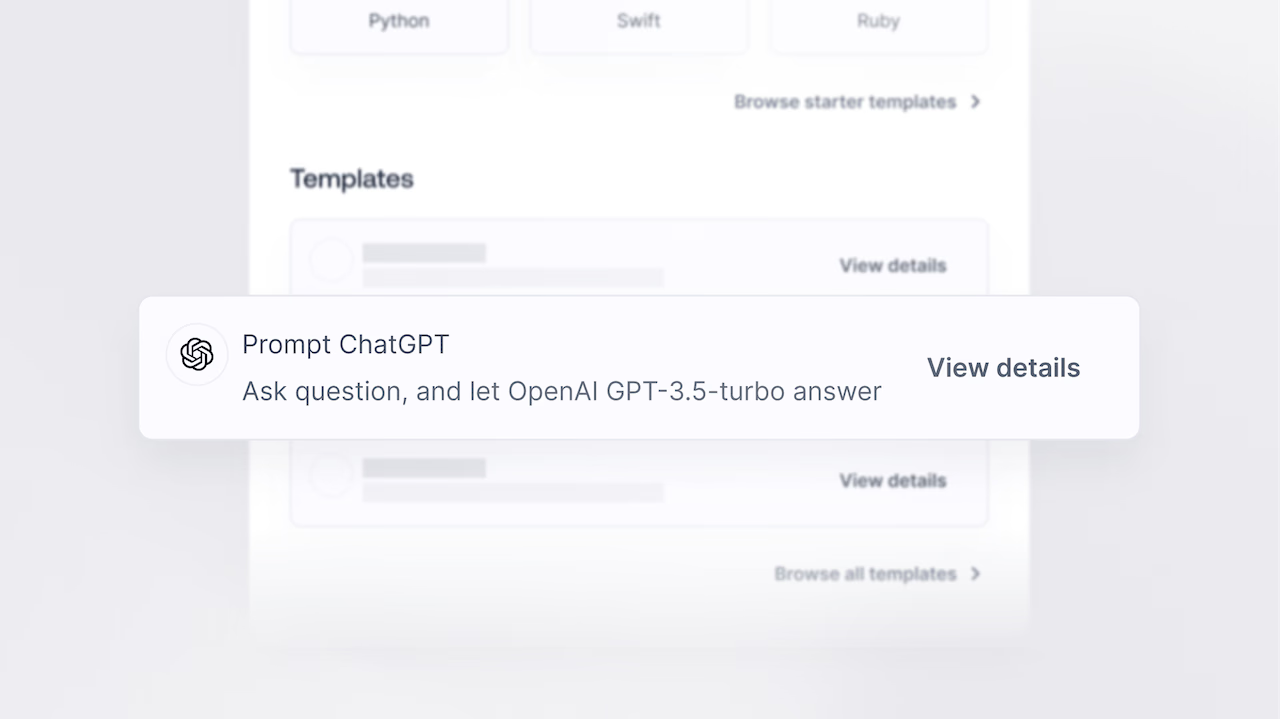
Function templates are pre-built Appwrite Functions that can be integrated into your Appwrite project with just a few clicks. Using them, you can easily incorporate new features and integrations into your app without writing additional code or managing infrastructure.
One such integration you can implement using Appwrite Functions is an intelligent chatbot using ChatGPT. In this blog, you will learn how you can use an Appwrite Function Template to create an interactive bot that will answer any of your questions using OpenAI’s GPT-3.5 API.
Setting up the OpenAI Platform
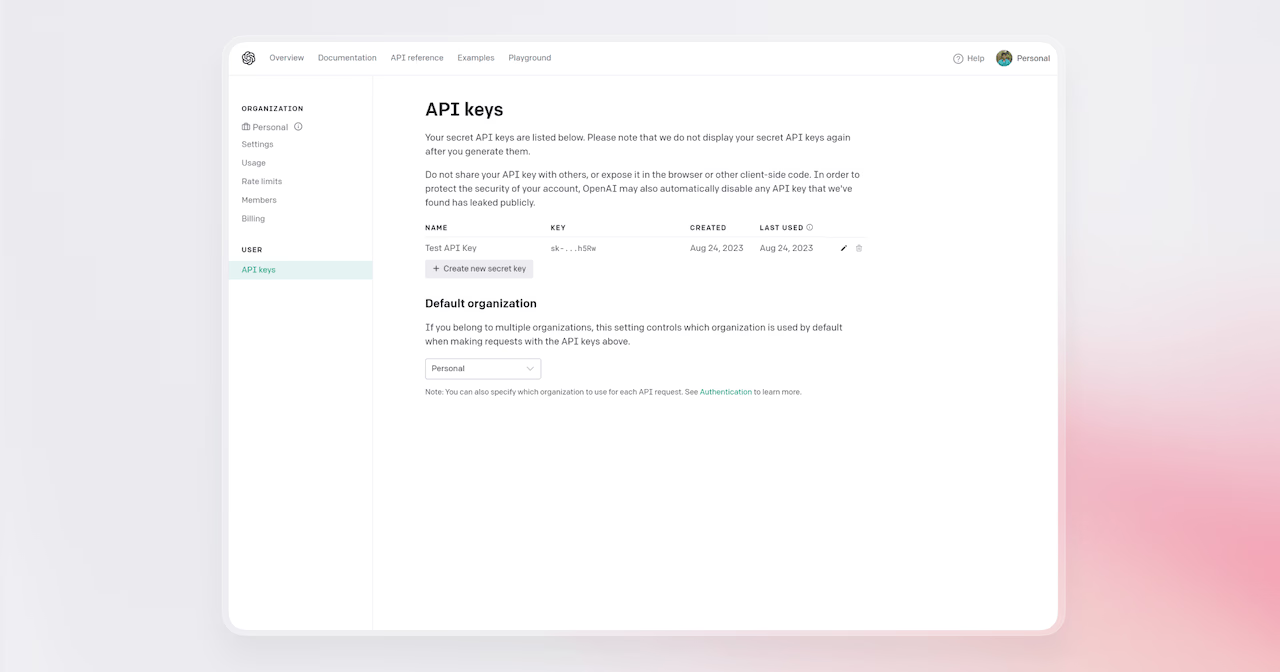
To get an OpenAI API Key, you must create an account on the OpenAI platform. Once your account is set up, visit their API keys page and create an API Key. Ensure you copy and save this key in a safe place, as the OpenAI platform will not let you view the key after it is created.
Preparing the Appwrite Function
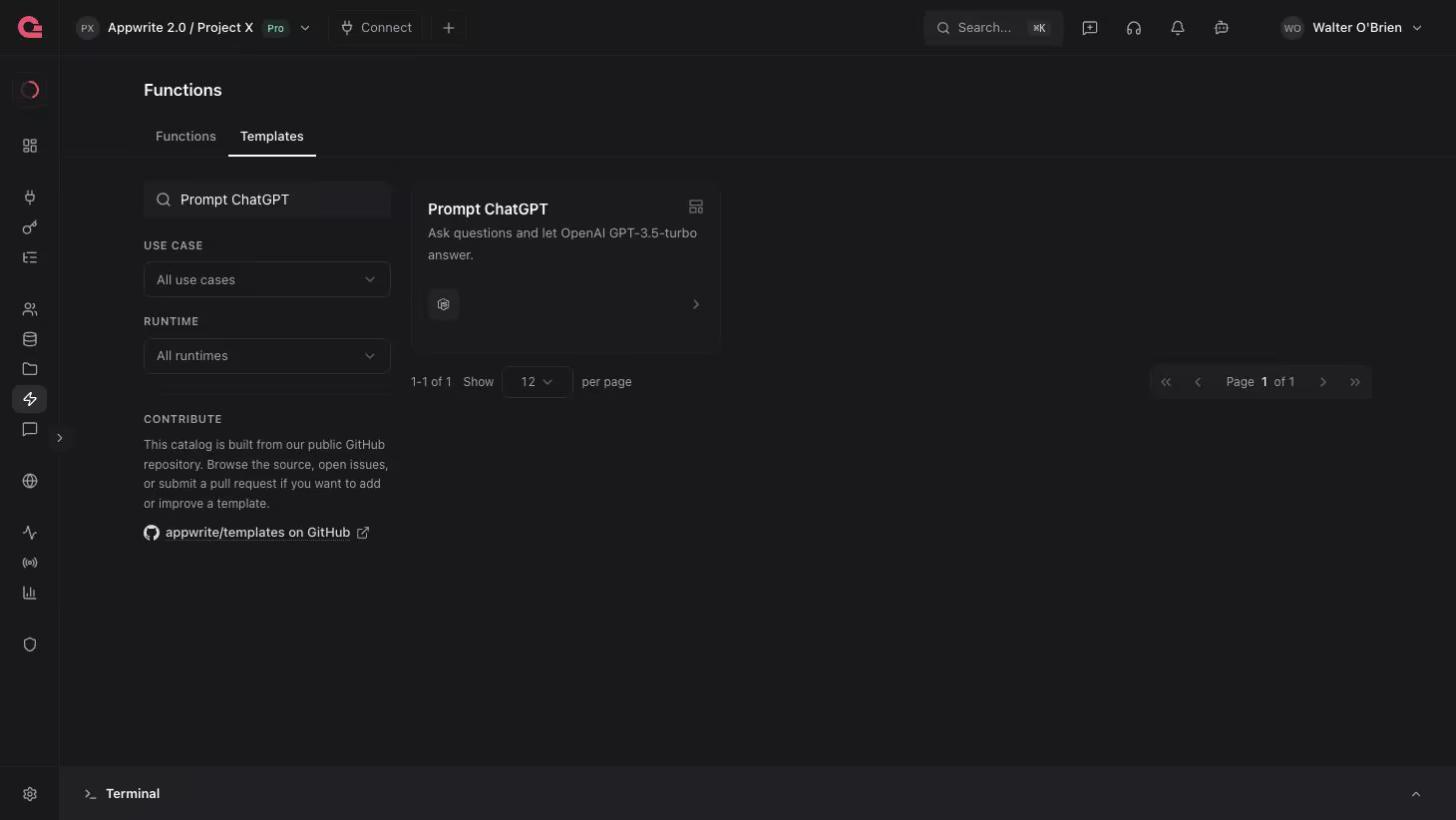
Now that we have our OpenAI API Key, let us get the function ready on Appwrite. Head over to your Appwrite project and visit the Functions page. From there, we will select the Templates tab, search for and select the Prompt ChatGPT function template.
This function requires 1 environment variable to setup:
OPENAI_API_KEY: API Key from our OpenAI account
After you have configured the environment variables, you must connect your Appwrite account with GitHub, select Create a new repository (this will generate a GitHub repository for you with the function), and leave the production branch and root settings as default to create this function.
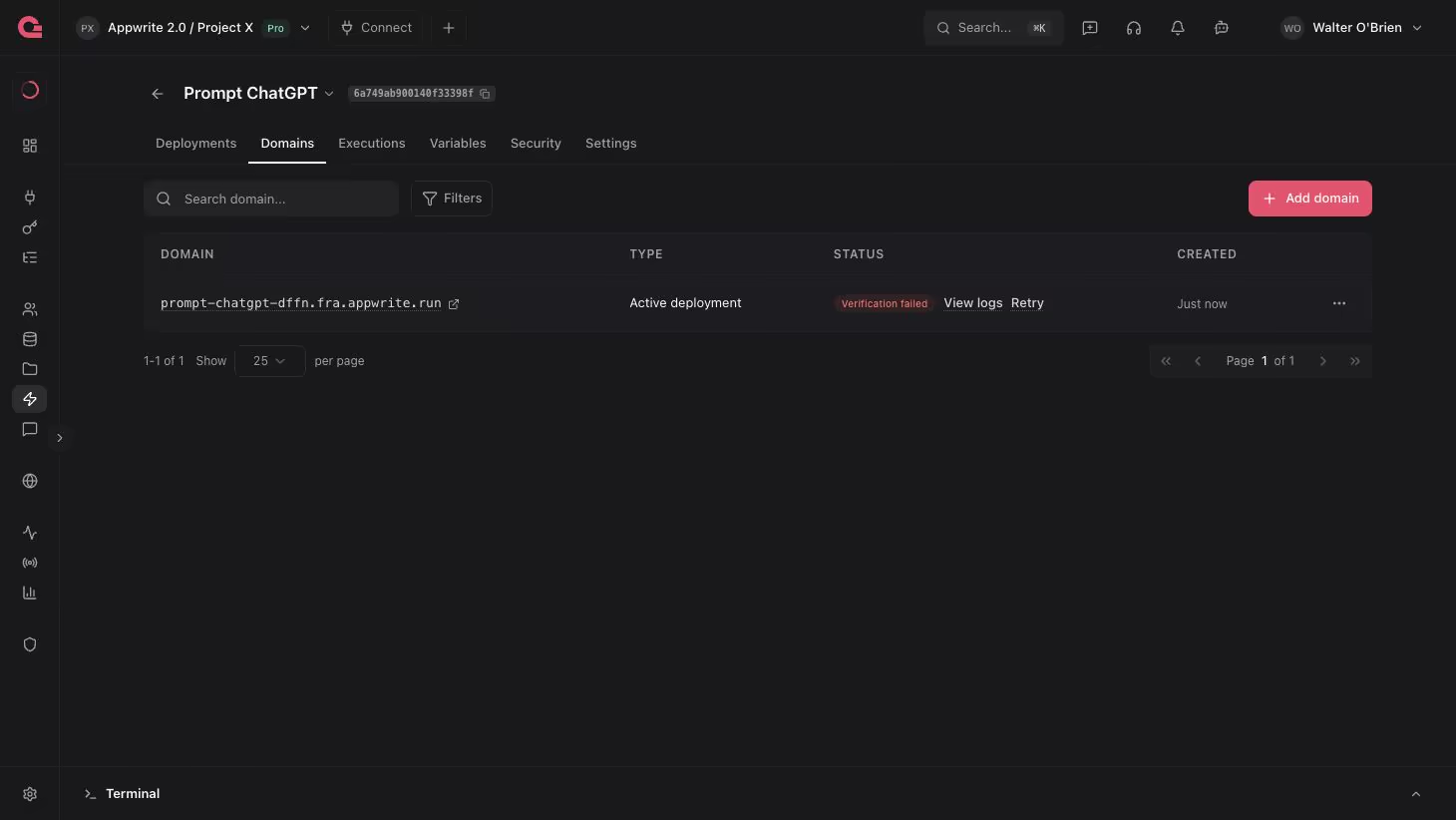
Once the function is ready, visit the Domains tab on the function page and copy the domain URL to test the function.
Testing the Function
Once all the aforementioned steps are complete, it is time to test the function!
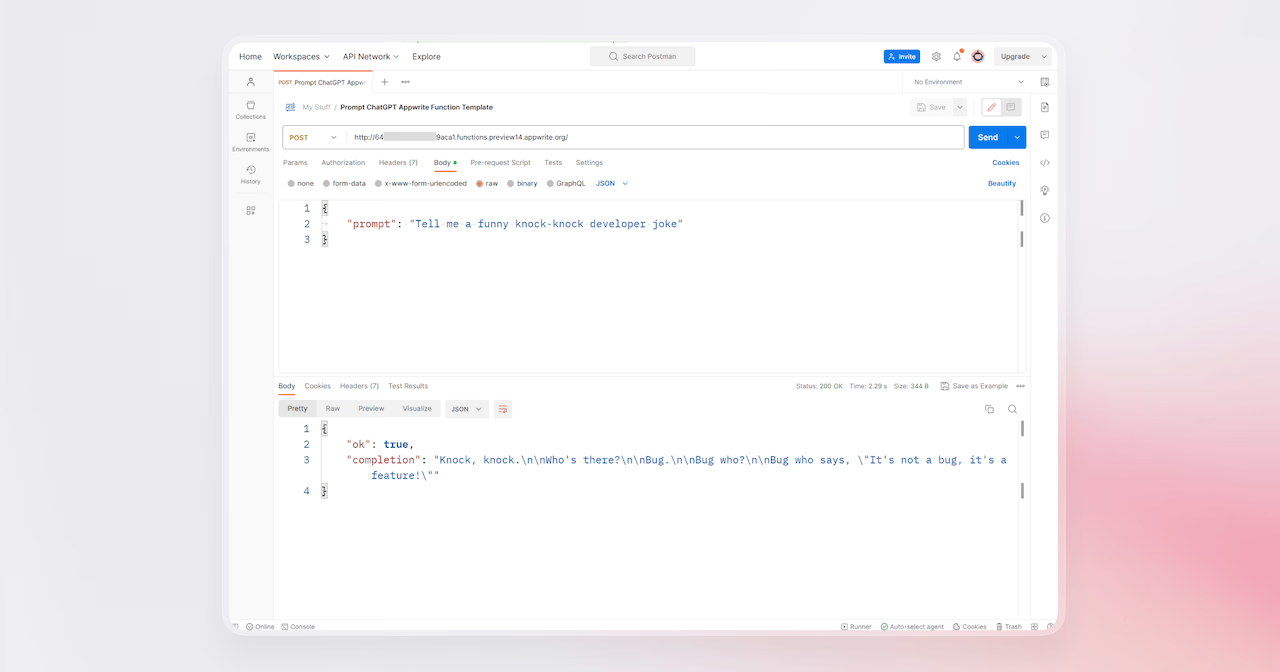
To consume this function, you must send the function URL a POST HTTP Request with a JSON Body in the following format:
{ "prompt": "<ENTER YOUR PROMPT>"}If successful, you will receive a response in the following format:
{ "ok": true, "completion": "<CHAT COMPLETION FROM GPT-3.5>"}Here’s a screenshot of a test prompt that was sent to the function using Postman:
Next steps
We’ve covered the basics, and now it’s your time to shine! With a few changes, you should be able to extend this template to fit your app. Be sure to check out the other available Function Templates. We’ve created many that could be of use in your projects. You can find the templates GitHub repository here.
For more information about Appwrite and Appwrite Functions:
- Appwrite Function Docs: These documents provide more information on how to use Appwrite Functions.
- Functions Announcement: Read the full announcement on Functions 1.4.
- Appwrite Discord: Connect with other developers and the Appwrite team for discussion, questions, and collaboration.