Add a search function to your application_
Learn how to add a search function to your application.

Function templates are pre-built Appwrite Functions that can be integrated into your Appwrite project with just a few clicks. Using them, you can easily incorporate new features and integrations into your app without writing additional code or managing infrastructure.
One such integration you can implement using Appwrite Functions is Searching using Meilisearch. In this blog we show how you can use an Appwrite Function Template to integrate search with Meilisearch.
Setting up the Template
Meilisearch is a flexible and powerful user-focused search engine that can be added to any website or application. The purpose of this function template is to sync rows in an Appwrite database table to a Meilisearch index. Using this function template, users can explore, search, and retrieve information from the connected database table. Through this template, rows from the Appwrite table are systematically indexed within Meilisearch.
To use the function, you need the following set of keys:
APPWRITE_KEY- API Key to talk to Appwrite backend APIs.To generate API Keys you can follow the documentation hereAPPWRITE_ENDPOINT- To get the Appwrite endpoint, you need to go to Appwrite and find it under “Settings”APPWRITE_DATABASE_ID- The ID of the Appwrite database that contains the table to sync. You can find the documentation here.APPWRITE_TABLE_ID- The ID of the table in the Appwrite database to sync.
To use Meilisearch, you can either self-host it using the command 👇
curl -L [https://install.meilisearch.com](https://install.meilisearch.com/) | shOr use Meilisearch Cloud. For this example, we will assume that you are using Meilisearch Cloud.
Here’s the keys you need:
MEILISEARCH_ENDPOINT- This is the host URL of the Meilisearch server. Once you have logged in to Meilisearch Cloud and created a new project, you will find the URL under “Overview” and this is how it should look like 👇
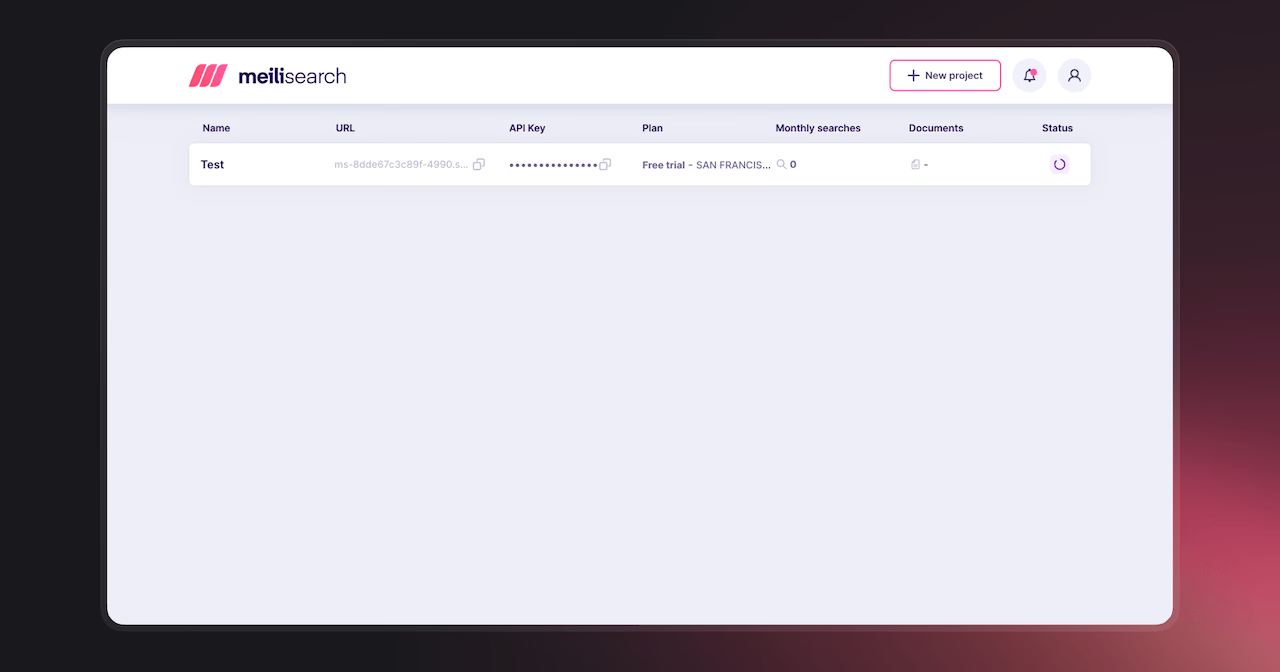
MEILISEARCH_ADMIN_API_KEY- This is the admin API key for Meilisearch. You will find it in the Meilisearch Console under “API Key”.MEILISEARCH_SEARCH_API_KEY- This is the API Key for Meilisearch search operations. To get this, you need you create a new index from the Meilisearch Console. Once created you will find it underOverviewasDefault Search API Key
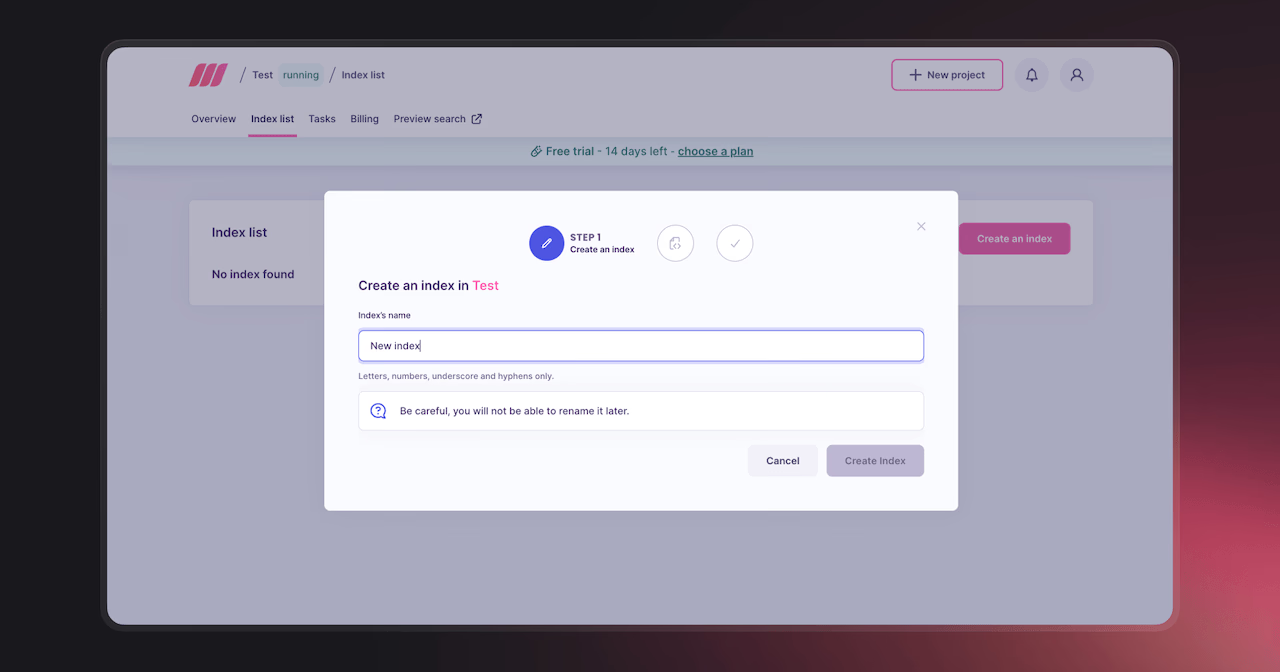
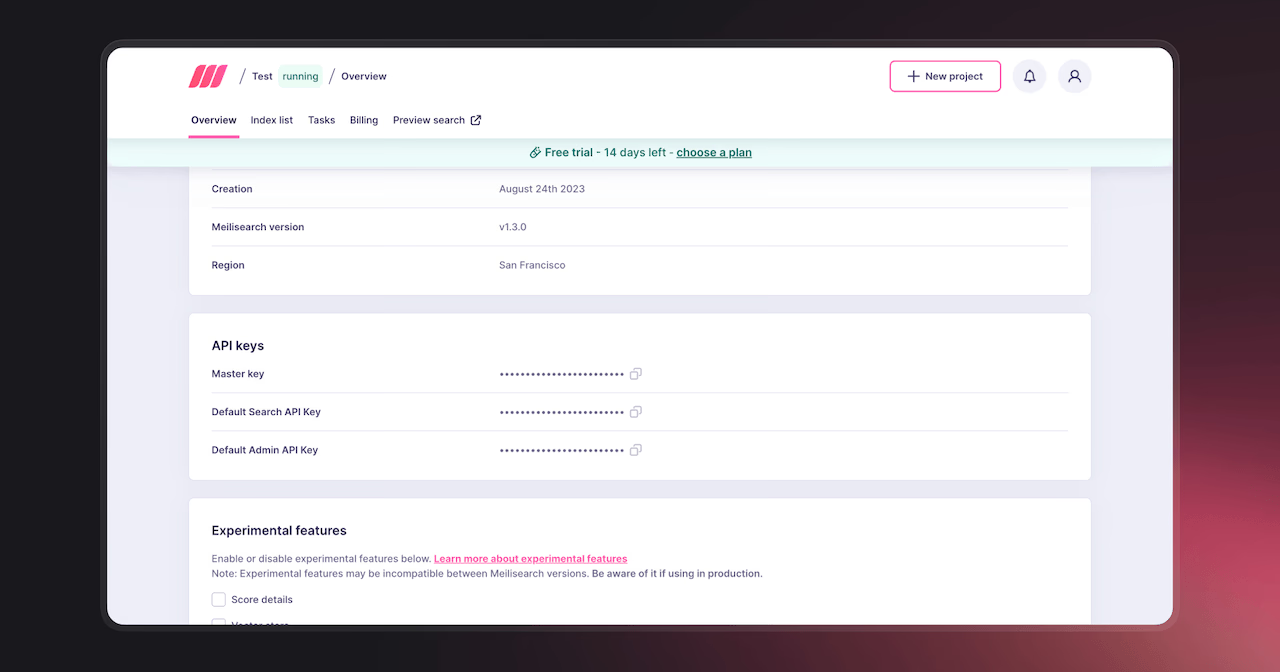
MEILISEARCH_INDEX_NAME- Name of the Meilisearch index to which the rows will be synchronized. For e.g, in the above picture, the Index name isNewindex. You can also find it underSettingsasIndex Name.
Preparing the Function
The function template syncs rows in an Appwrite database table to a Meilisearch index. It should get you up and running, but you will need to add real data to build a useful search index.
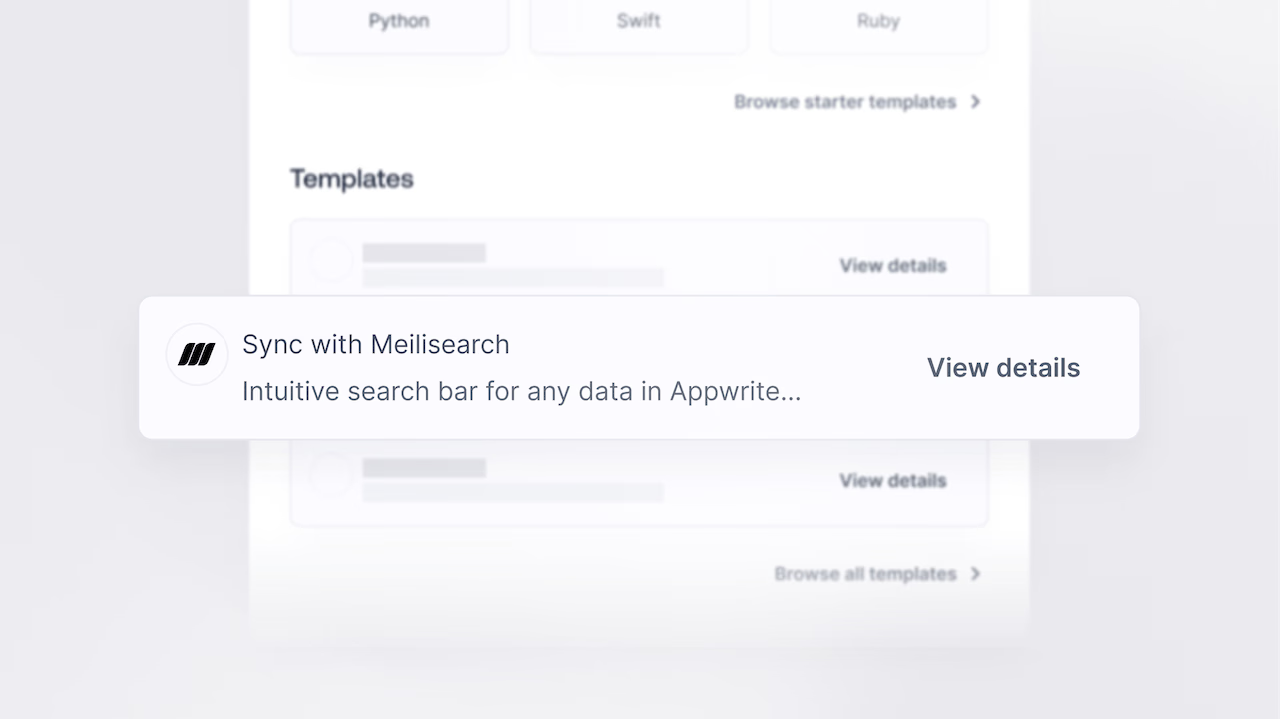
If you want to see the source code, you can find it on our templates GitHub repository. Now, let’s navigate to our functions page on Appwrite. From there, we will select the Templates tab, search for and select the Sync with Meilisearch function template.
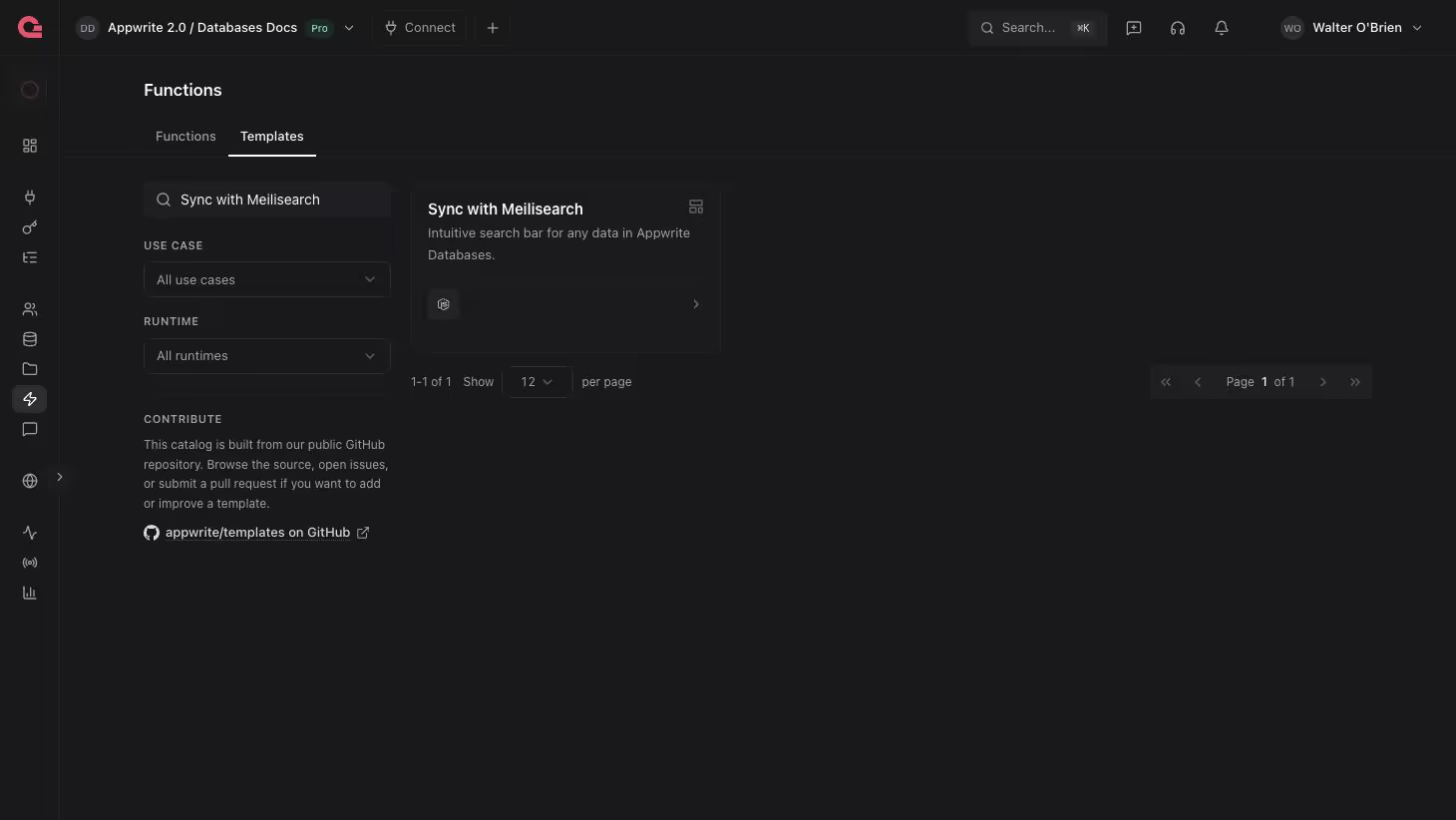
The function requires APPWRITE_API_KEY, APPWRITE_DATABASE_ID, APPWRITE_TABLE_ID, MEILISEARCH_ENDPOINT, MEILISEARCH_ADMIN_API_KEY, MEILISEARCH_SEARCH_API_KEY, MEILISEARCH_INDEX_NAME. Once you have added them you can proceed to the Connect step.
Select Create a new repository (this will generate a GitHub repository for you with the function), and leave the production branch and root settings as default to create this function.
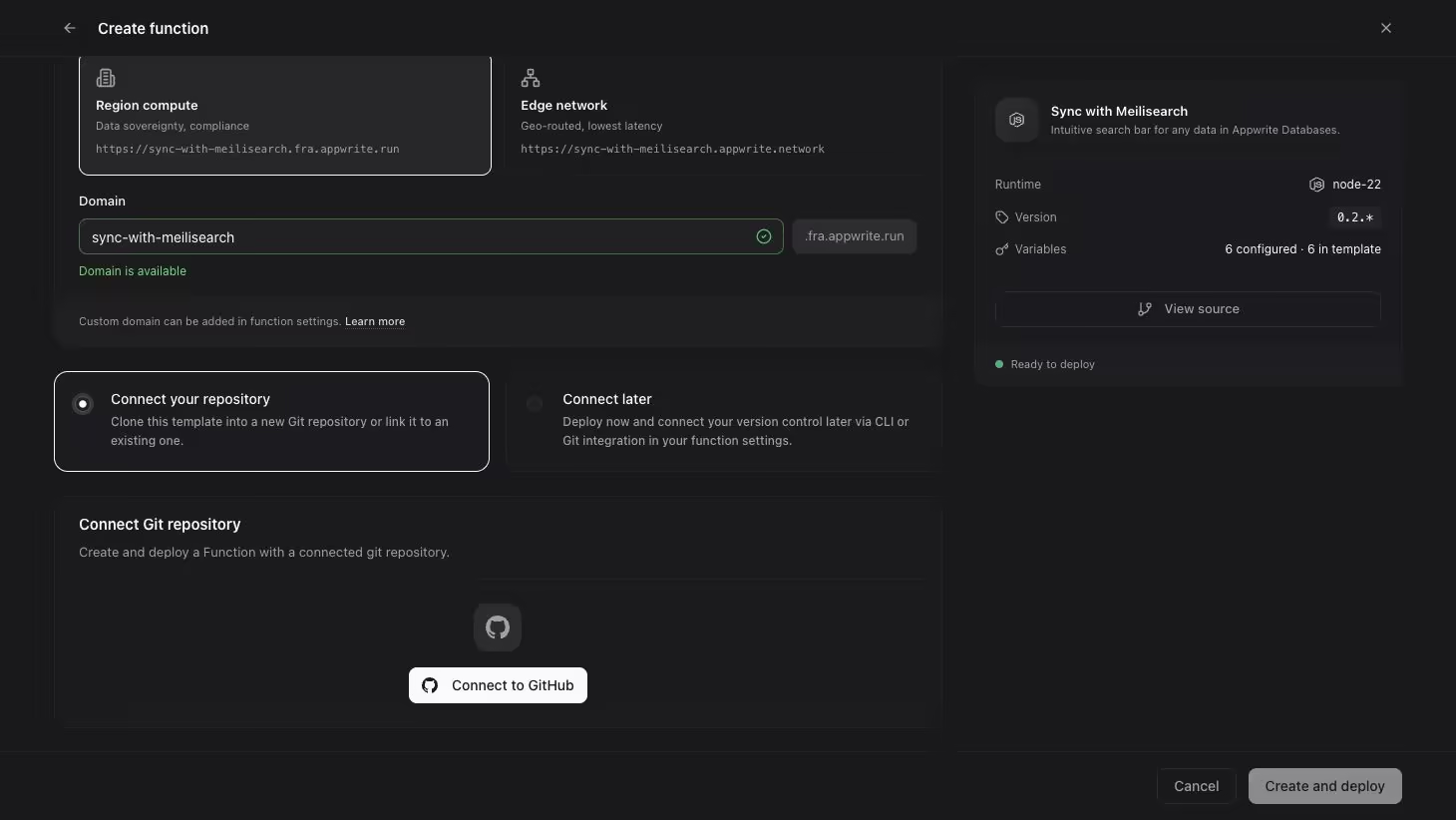
Testing the Template
Visit the Domains tab on the function page and copy the domain URL to test the function.

Conclusion
We’ve added search functionality to our app and opened up many possibilities to improve the experience of our app’s users.
How can the template be extended ?
- Using
tablesdb.<DATABASE_ID>.tables.<TABLE_ID>.rows.*.create,tablesdb.<DATABASE_ID>.tables.<TABLE_ID>.rows.*.update, andtablesdb.<DATABASE_ID>.tables.<TABLE_ID>.rows.*.deleteevents to automatically index new rows - Using weights and other meilisearch features to optimise search such as excluding certain fields from indexing
Some examples are:
- Real-time Data Exploration: It can be used to provide real-time search capabilities for datasets and data streams, allowing users to explore and analyze data in real-time.
- Content Management Systems: The function template can be integrated into content management systems (CMS) to facilitate efficient content retrieval for editors and site visitors.
Be sure to check out the other available Function Templates. We’ve created multiple that could be of use in your projects. You can find the templates GitHub repository here.
For more information about Appwrite and Appwrite Functions:
- Appwrite Function Docs: Learn more about how to use Appwrite Functions.
- Functions Announcement: Read the full announcement on Functions 1.4.
- Appwrite Discord: Connect with other developers and the Appwrite team for discussion, questions, and collaboration.