Appwrite MCP server_
Enable LLMs and code-generation tools to interact with your Appwrite project and documentation
4 min read
Appwrite offers a Model Context Protocol (MCP) server that allows LLMs to directly interact with Appwrite's API and docs. Using the MCP server, you can use applications such as Claude Code, Codex, Cursor, Claude Desktop, and others to operate on your Appwrite project as well as gain context about the latest updates to Appwrite's SDKs, APIs, and CLI.
What is MCP?
The Model Context Protocol (MCP) is an open standard that enables Large Language Models (LLMs) and AI code-generation tools to interact with APIs and documentation in a structured manner. MCP servers provide a bridge between LLMs and external services, allowing them to perform actions such as querying databases, managing users, and accessing files.
The key benefits of using MCP servers include:
- Enhanced capabilities: LLMs can perform complex tasks by interacting with APIs, going beyond simple text generation.
- Improved context: By accessing up-to-date documentation and API definitions, LLMs can provide more accurate and relevant responses.
- Seamless integration: MCP servers can be easily integrated with popular AI tools and code editors, enhancing their functionality.
Why use the Appwrite MCP server?
Some popular use cases for the Appwrite MCP server include:
- Code generation: Automatically generate code snippets or entire files based on user input and context.
- Documentation lookup: Quickly find relevant documentation for specific API endpoints or SDK features.
- Project management: Create, update, or delete resources in your Appwrite project using natural language commands.
- Debugging assistance: Get help with debugging issues by providing context about your project and recent changes.
- Learning and exploration: Explore Appwrite's features and capabilities through interactive conversations with LLMs.
The server also provides:
- Direct API interaction: Enables LLMs to perform actions directly on your Appwrite project
- Real-time data access: Allows LLMs to fetch and manipulate live data from your Appwrite instance
- Documentation search: Lets LLMs semantically search the Appwrite documentation for accurate, up-to-date context
- Automatic service discovery: All supported Appwrite services are automatically registered, no configuration needed
- No local setup: Runs as a hosted HTTP service, so there is nothing to install or keep updated
Connection details
The Appwrite MCP server is a remote server that uses the HTTP transport. It is available at the following URL:
https://mcp.appwrite.io/The server uses OAuth for authentication. When you add the server to an AI tool and connect for the first time, your browser opens so you can sign in to your Appwrite account and authorize access. You don't need to create or manage API keys.
MCP clients complete that OAuth flow with a localhost callback URL. If you run your AI tool on a remote host, follow Authenticate from a remote machine.
Pre-requisites
Before connecting to the MCP server, you must set up an Appwrite project on Appwrite Cloud. No additional software needs to be installed on your system.
Installation
You can add the MCP server to various AI tools and code editors:


If you are building an AI code-generation tool that can integrate with MCP servers and would like to collaborate, join our Technology Partners program.
How it works
The MCP server starts in a compact workflow where only a small set of MCP tools is exposed to the model:
appwrite_get_context- Returns a summary of your workspace, including your account, organization, and projectsappwrite_search_tools- Searches the full Appwrite tool catalog at runtimeappwrite_call_tool- Calls a specific Appwrite tool by nameappwrite_search_docs- Semantically searches the Appwrite documentation
The full Appwrite tool catalog stays internal and is searched at runtime, using less of the model's context.
Authenticate from a remote machine
MCP clients listen on a localhost callback URL for the OAuth redirect. When the client runs over SSH, on a droplet, or on any host without a local browser, that callback stays on the remote machine's loopback.
Log in from the Claude Code shell with --no-browser:
claude mcp login appwrite --no-browserThe command prints an authorization URL. Open it in a browser on your local machine, sign in to Appwrite, and authorize access. After you approve, the browser navigates to a http://localhost:.../callback URL. Copy the full URL from the address bar and paste it into the Claude Code prompt.
Self-hosted Appwrite
The hosted MCP server authenticates against Appwrite Cloud. If you are running a self-hosted Appwrite instance, use the local MCP server instead. It runs on your machine over the stdio transport and connects to your instance with an API key. Follow the self-hosted MCP server documentation to set it up.
Usage
Once configured, your AI assistant will have access to your Appwrite project. You can ask questions like:
Example 1: List users
Run the following prompt in your preferred code editor/LLM after enabling the MCP server:
List users in my Appwrite project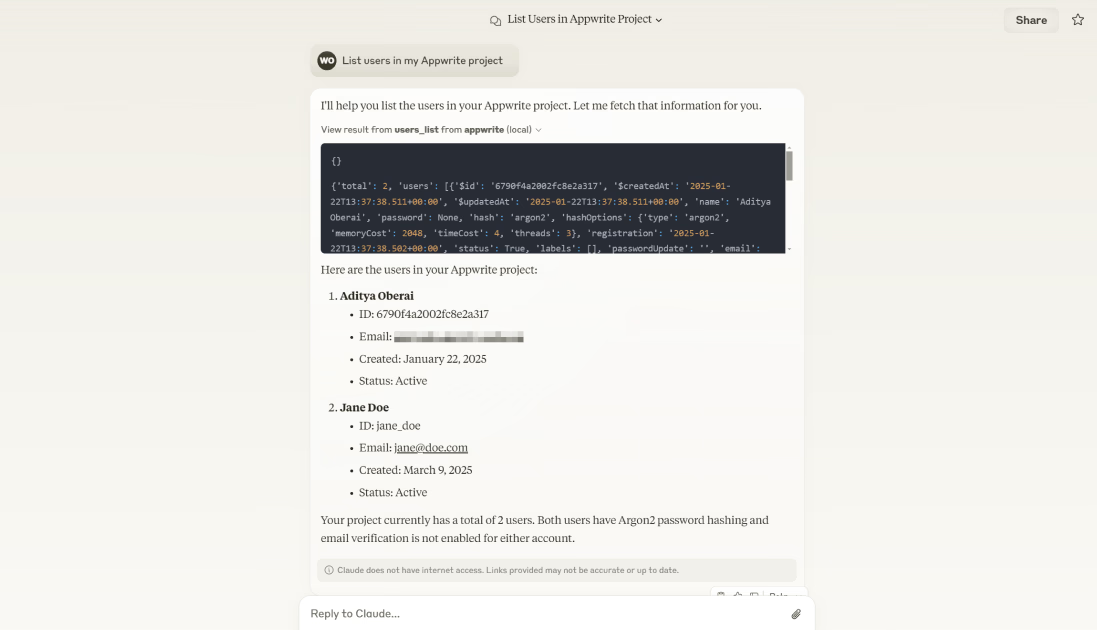
Example 2: Search a site
Run the following prompt in your preferred code editor/LLM after enabling the MCP server:
Get the details of my portfolio site from Appwrite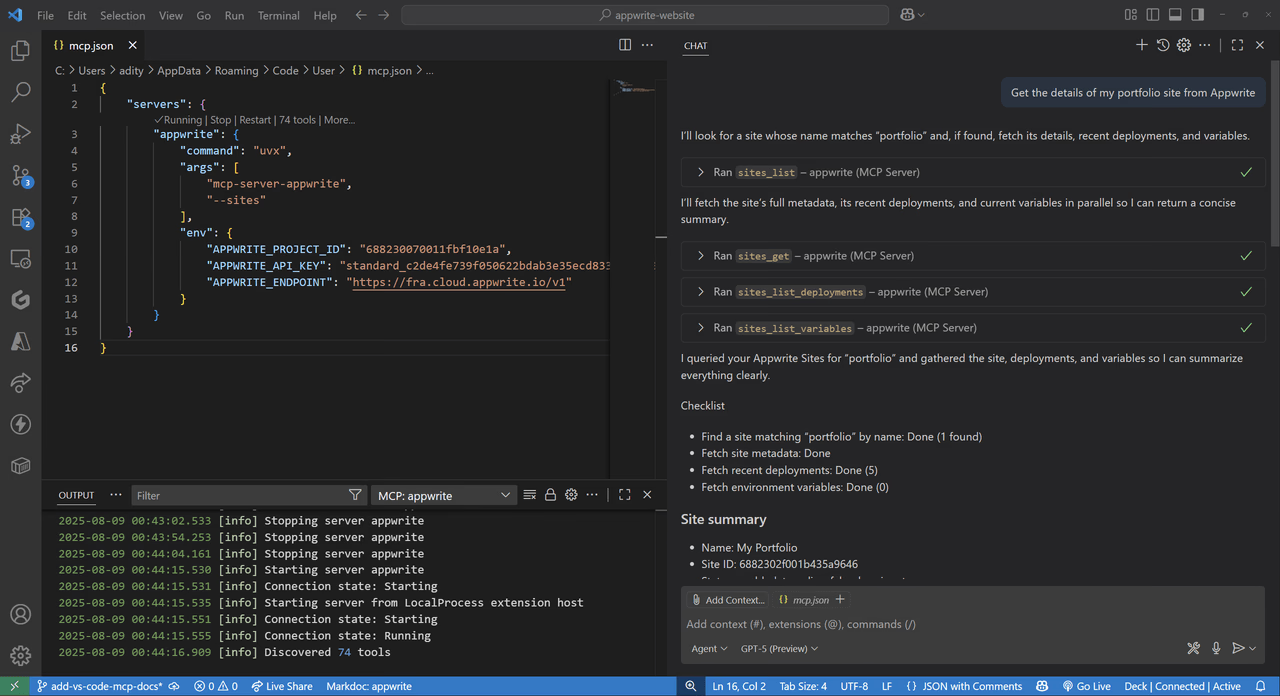
Example 3: Create a user
Run the following prompt in your preferred code editor/LLM after enabling the MCP server:
Add a user john.doe@example.com to the Appwrite project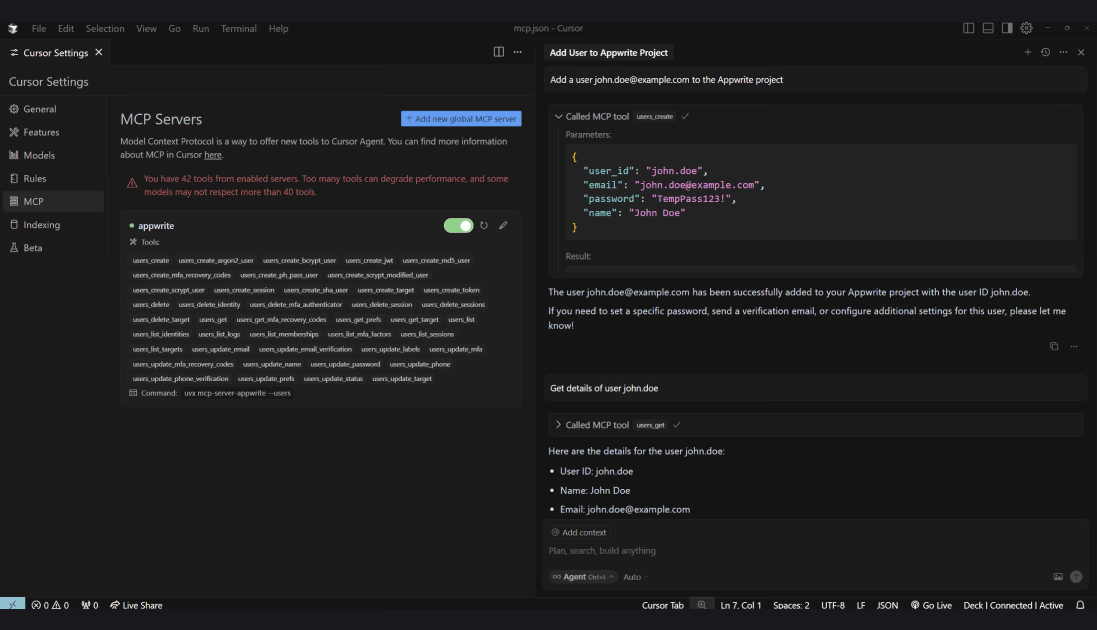
Example 4: Search the documentation
Run the following prompt in your preferred code editor/LLM after enabling the MCP server:
Show me how to set up real-time subscriptions that trigger on creation of a user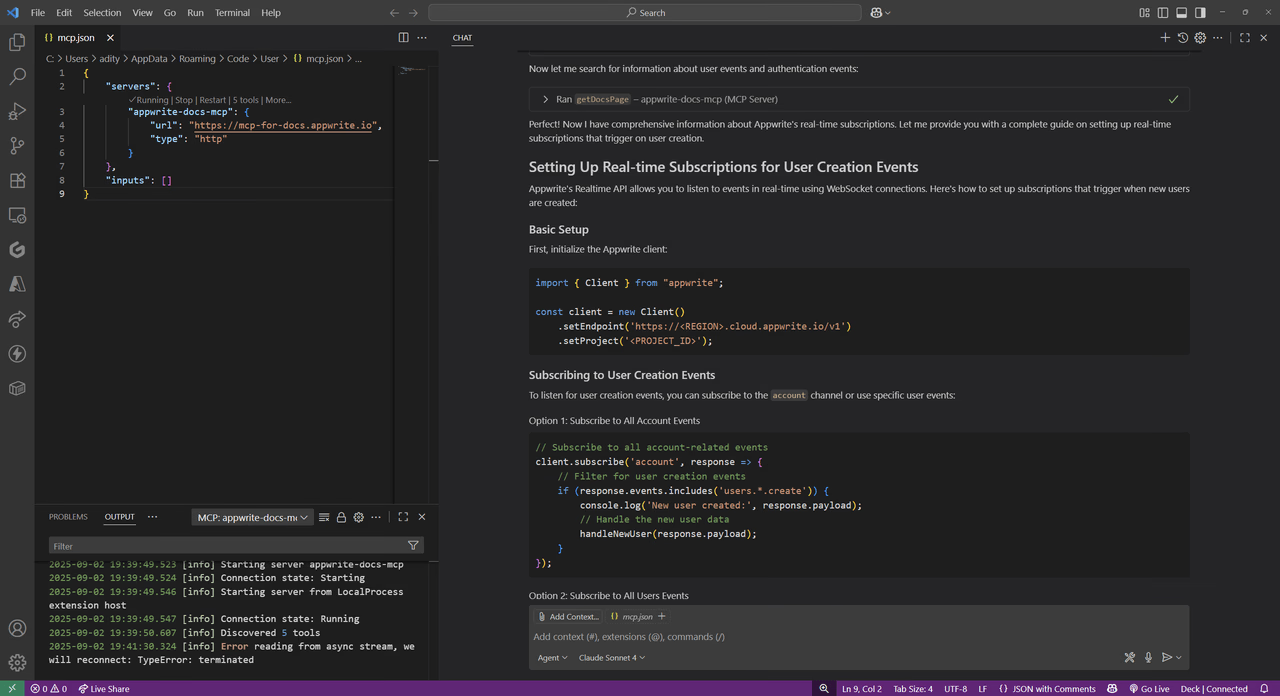
Was this page helpful?
Share what worked or what we should fix. Once approved, our agents automatically apply suggested updates to the docs.