

Claude Desktop is a standalone application by Anthropic that allows users to interact with the Claude large language model directly from their Mac or Windows desktops. Designed for convenience and speed, it offers a distraction-free chat experience, supports multiple conversations, and runs natively for faster performance and system integration. Whether you're brainstorming, coding, summarizing documents, or automating workflows, Claude Desktop makes it easy to harness AI assistance without relying on a browser.
How does the integration work?
The Appwrite MCP server integrates with Claude Desktop using the Model Context Protocol (MCP), allowing you to connect your Appwrite project to Claude Desktop.
This integration enables you to perform various operations on your Appwrite resources, such as creating users, managing databases, and more, directly from Claude Desktop using natural language commands.
How to implement
To implement the MCP with Claude Desktop integration, there are several steps you must complete:
Step 1: Set up your Appwrite project
First, you must create an account on Appwrite Cloud if you haven't already, and create a project.
The MCP server is a remote server that uses the HTTP transport and OAuth for authentication, so you don't need to create an API key.
The hosted MCP server authenticates against Appwrite Cloud. If you run a self-hosted Appwrite instance, follow the self-hosted setup in the MCP documentation instead.
Step 2: Configure the MCP server on Claude Desktop
Claude Desktop only supports local (stdio) MCP servers, so the configuration uses the mcp-remote package as a proxy to connect to the remote MCP server. You must install Node.js and npm on your system.
To configure the MCP server on Claude Desktop, head to the app's Settings page (press CTRL + , on Windows or CMD + , on MacOS), navigate to the Developer tab, and click on Edit Config. This will open the claude_desktop_config.json file, where you must add the following:
{ "mcpServers": { "appwrite": { "command": "npx", "args": [ "mcp-remote", "https://mcp.appwrite.io/" ] } }}Once you have updated and saved the claude_desktop_config.json file, restart Claude Desktop. When the app first connects to the server, your browser opens so you can sign in to your Appwrite account and authorize access. You can then click on the MCP tools button (at the bottom right section of the prompt input) to view the available MCP tools.
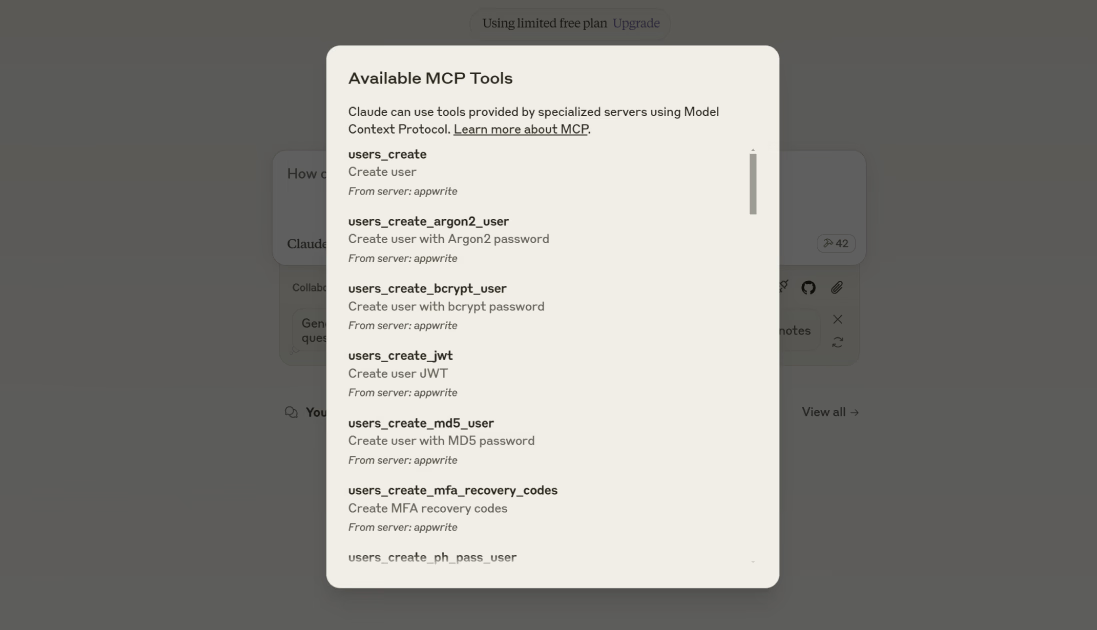
If you are using the Claude Code CLI, you can use the following command in your terminal to configure the MCP server:
claude mcp add --transport http appwrite https://mcp.appwrite.io/Then, run /mcp in Claude Code, select appwrite, and choose Authenticate to sign in to your Appwrite account.
Step 3: Test the integration
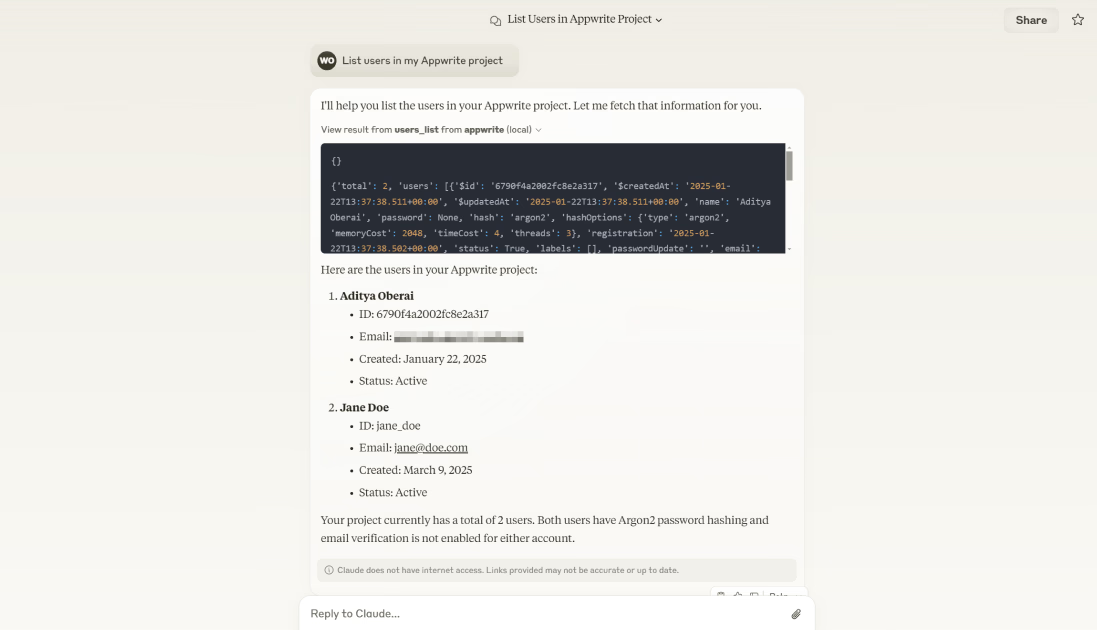
Finally, you can test the integration by asking Claude Desktop to list all the users in your Appwrite project.
Read more about MCP with Claude Desktop
If you would like to learn more about MCP with Claude Desktop, we have some resources that you should visit:

