Start with Sign in with Appwrite_
Register an app and run the full Sign in with Appwrite flow, from consent screen to your first authorized API call.
5 min read
This guide builds Sign in with Appwrite into an app, start to finish. The running example is Horizon, a deployment dashboard:
- A user clicks its sign-in button.
- They approve access on the Appwrite consent screen.
- Horizon reads their projects with the tokens it receives.
By the end, you will have run the same journey with your own app.
You need a server that can receive a redirect and keep a client secret. The examples use http://localhost:7700/oauth/callback as the redirect URI; replace it with your own.
Register your app
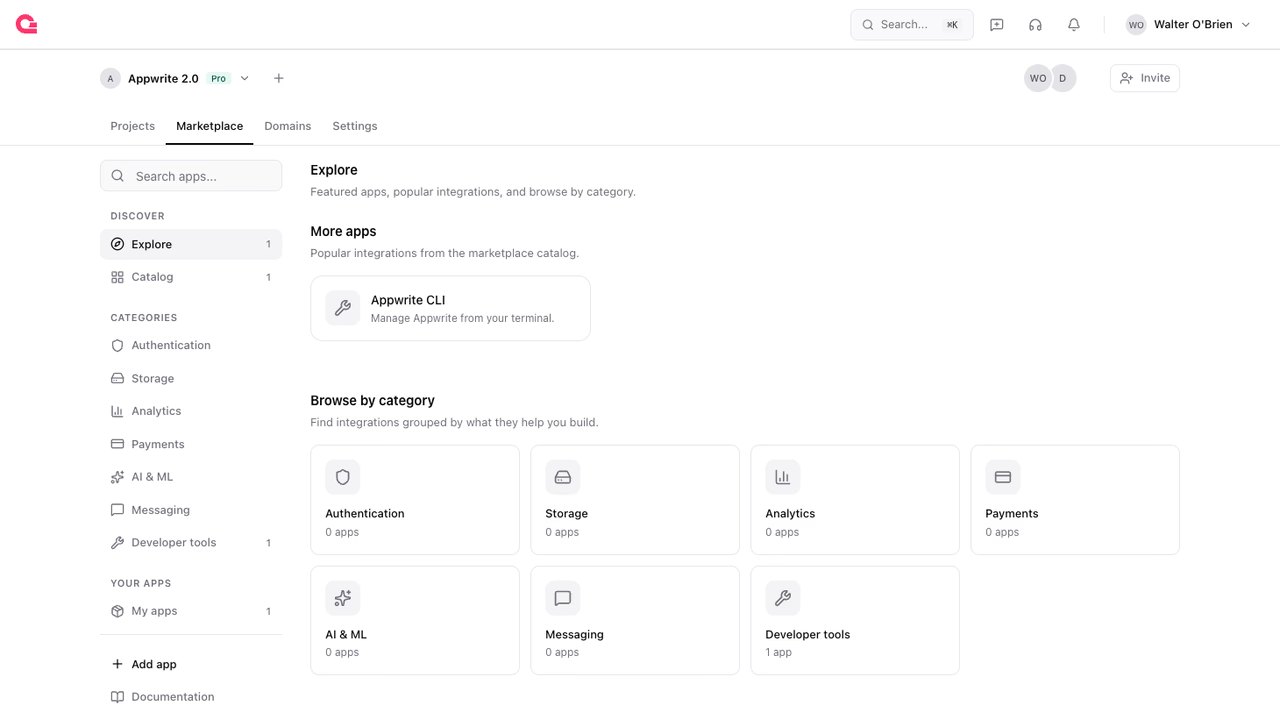
Before Appwrite can show your app to anyone, it needs to know the app exists. In the Console, open your organization's Marketplace tab and click Add app. Give it a name, a slug, a category, and a short description; the slug becomes your client ID, so Horizon signs in as horizon.
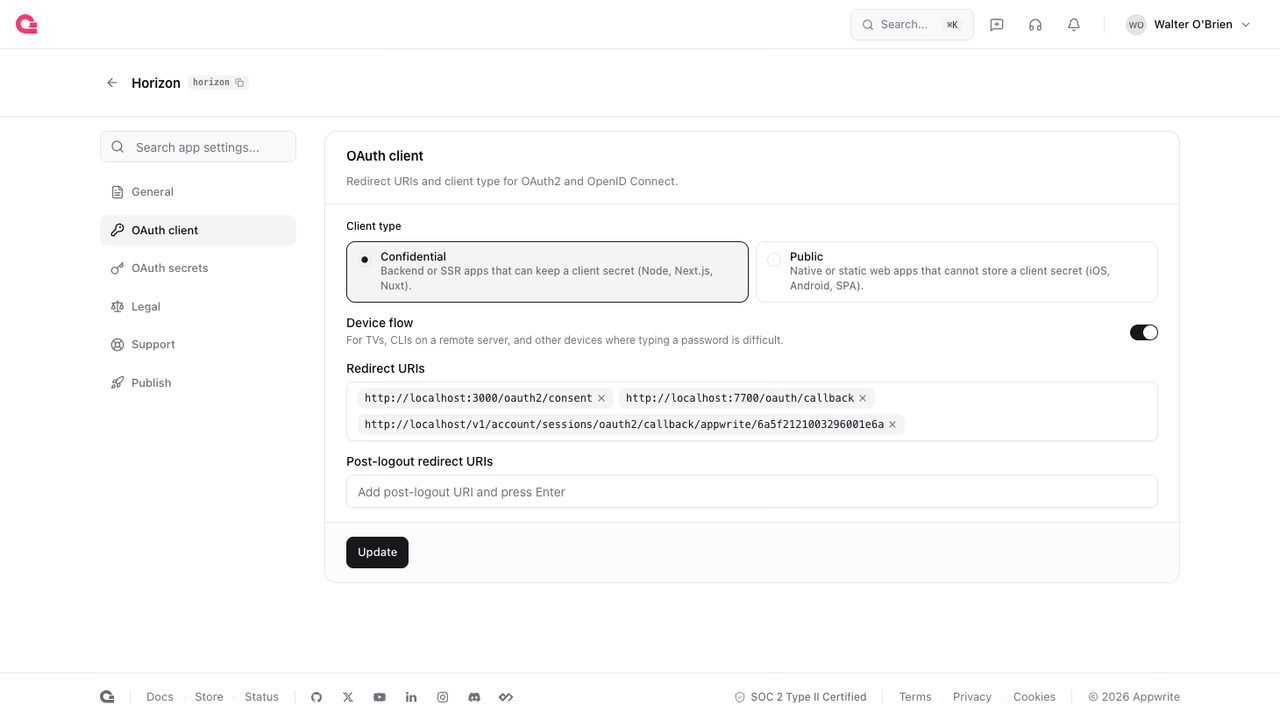
The new app opens on its settings pages. Go to OAuth client and configure two things:
- Client type: keep Confidential. Your app has a server, and the server will hold the client secret.
- Redirect URIs: add your callback URL,
http://localhost:7700/oauth/callbackin this guide. After the user approves, Appwrite only ever redirects to a URL on this list, so a stolen client ID cannot send your users anywhere else.
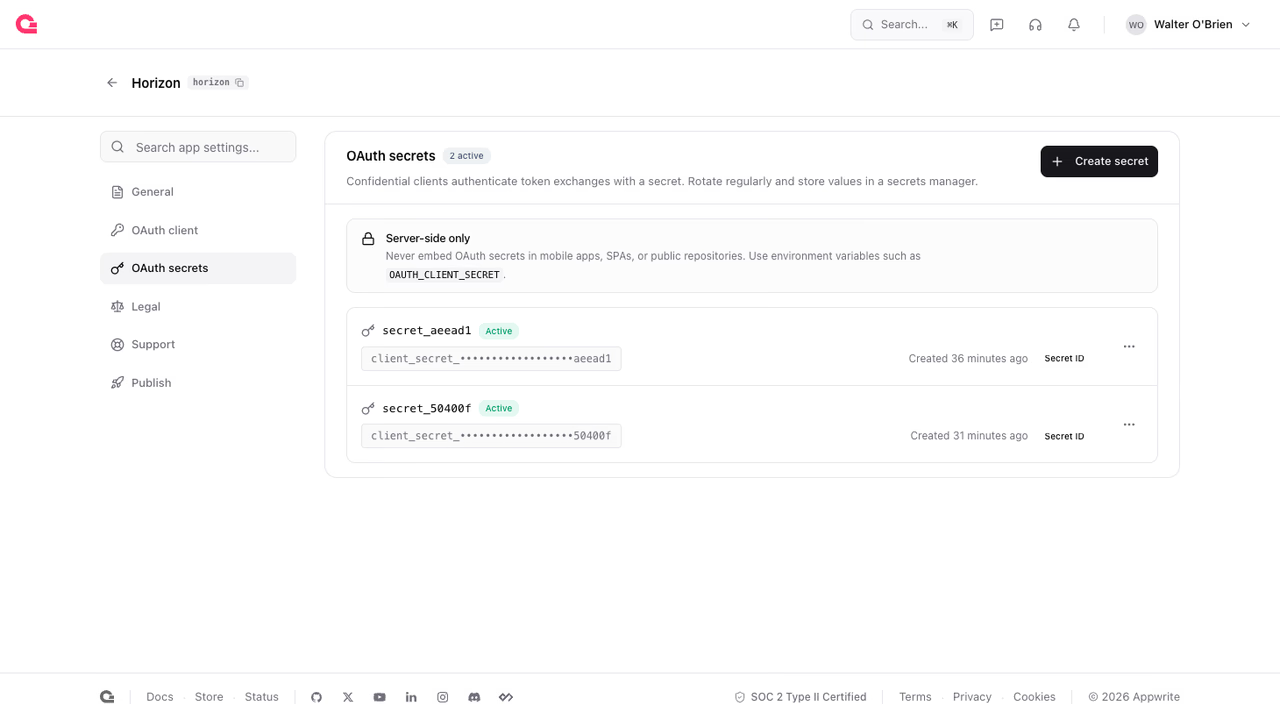
Last, your app needs a way to prove it is really Horizon when it exchanges codes for tokens. On OAuth secrets, select Create secret and copy the value; it is shown once. Store the client ID and the secret in your server's environment.
Registration covers the Console pages in more detail.
Redirect the user
With credentials in your environment, Horizon can offer a Sign in with Appwrite button. The button sends the user to the authorization endpoint.
The query string carries everything your app asks for:
- Identity scopes, so Horizon knows who signed in.
- One project scope,
project:databases.read, for the data it needs.
https://cloud.appwrite.io/v1/oauth2/console/authorize ?client_id=<CLIENT_ID> &redirect_uri=http://localhost:7700/oauth/callback &response_type=code &scope=openid profile email project:databases.readURL-encode the values. Because the request carries a project scope, the consent screen asks the user which projects the grant covers. Scopes are described in the scope catalog.
User grants access
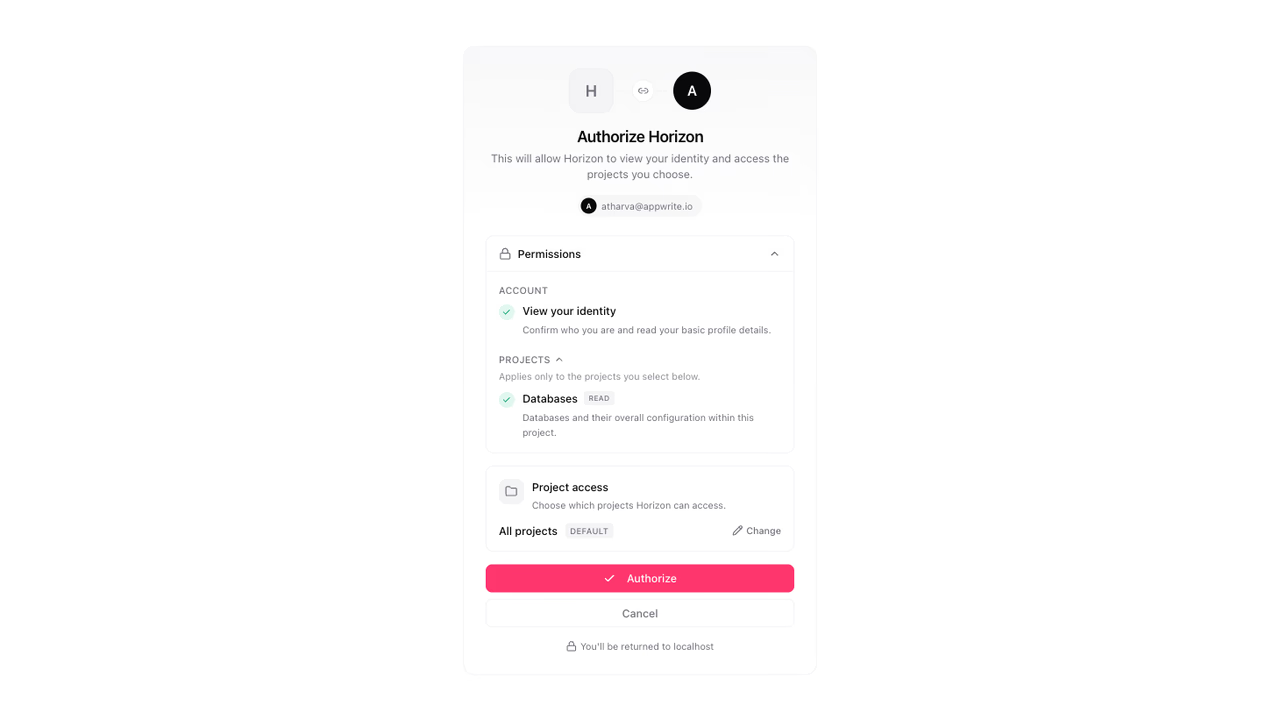
This is the moment the user meets your app inside Appwrite. The consent screen shows Horizon's name and logo, lists each requested permission in plain language, and lets the user select the projects the grant covers. On approval, the browser returns to your redirect URI:
http://localhost:7700/oauth/callback?code=<CODE>Use the code within five minutes. It is single-use.
Exchange the code
From your server, exchange the code for tokens, sending your client credentials in the request body.
The response carries the three tokens and echoes what the user actually granted:
{ "access_token": "eyJ0eXAiOiJhdCtqd3QiLCJhbGciOiJSUzI1NiJ9...", "token_type": "Bearer", "expires_in": 28800, "refresh_token": "eyJhbGciOiJIUzI1NiJ9...", "scope": "openid profile email project:databases.read", "authorization_details": [{ "type": "project", "identifiers": ["*"] }], "id_token": "eyJhbGciOiJSUzI1NiJ9..."}Check authorization_details for the projects the user selected; they may cover less than you asked for. Store the refresh token like a password. Tokens covers lifetimes, refresh rotation, and revocation.
Verify the token
Before doing anything else with the token, ask Appwrite who it belongs to. The userinfo endpoint answers with the user's identity, and only for tokens that are still active:
The response is the signed-in user:
{ "sub": "6a150ace003bc4c2919e", "name": "Walter O'Brien", "email": "walter@example.com", "email_verified": true, "updated_at": 1784707579}An expired or revoked token returns a 401 of type oauth2_invalid_token instead, so a successful response also proves the token is still live.
List the user's projects
The user is signed in and Horizon holds its tokens. Now the payoff: every Sign in with Appwrite token can list the projects and organizations it was granted. Call the listing endpoint with the access token as a bearer token.
The response lists every project the grant covers:
{ "total": 2, "projects": [ { "$id": "6a357f7e001c7237296b", "region": "fra", "endpoint": "https://fra.cloud.appwrite.io/v1" }, { "$id": "6a357fa40031c857fa9f", "region": "nyc", "endpoint": "https://nyc.cloud.appwrite.io/v1" } ]}Each entry carries the project's $id, region, and endpoint, which is everything your app needs to call it. The listing returns 25 projects per page and accepts limit and offset parameters for paging through more. A matching /oauth2/console/organizations endpoint lists granted organizations the same way.
Call a project API
The listing gives Horizon everything it needs to do real work. Point a client at a granted project's endpoint, keep the same bearer token, and call the APIs your scopes allow. With project:databases.read, that is listing the databases the project holds.
Prefer not to use an SDK? The cURL and Hurl tabs show the raw API call: the project's endpoint, the X-Appwrite-Project header, and the access token in the Authorization header. Every Appwrite API accepts the same shape.
A call outside the granted scopes or projects fails with a 401 error of type general_unauthorized_scope. The token works on every region, so your app never maps regions itself; use each project's endpoint value from the listing.
Refresh the token
Access tokens expire after 8 hours. When one does, trade the refresh token for a new pair instead of sending the user back through consent:
The response has the same shape as the original exchange: a fresh access token and a new refresh token. Refresh tokens are single-use, so store the new one as soon as it arrives; reusing a spent token invalidates the whole pair. Tokens covers rotation in detail.
Sign in through Appwrite Auth
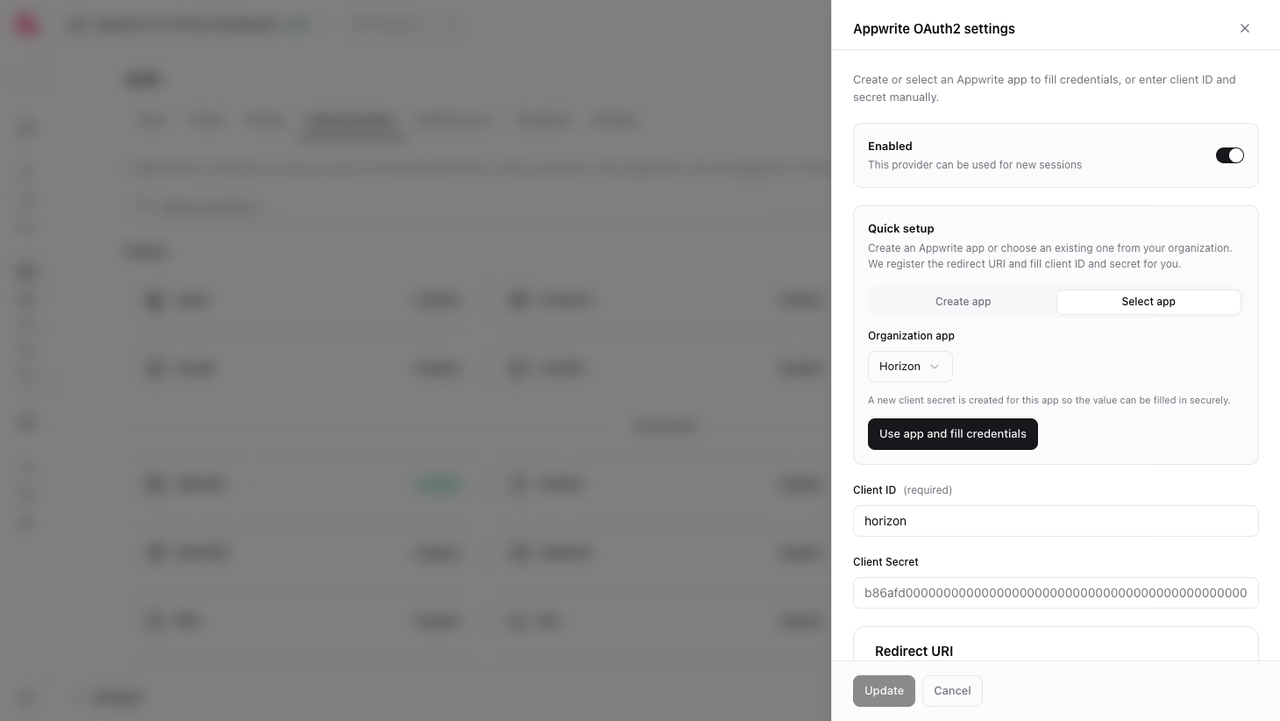
If your product itself runs on an Appwrite project, you do not need to handle the flow by hand. Appwrite Auth ships an Appwrite OAuth2 provider.
To enable it:
- In your project, open Auth, then Social providers, and select Appwrite.
- Use Quick setup to create or pick an organization app. Appwrite registers the callback URI and fills in the client ID and secret.
Then sign users in with the same call you would use for GitHub or Google:
The provider always requests the identity scopes. The scopes parameter adds project scopes on top, and the consent screen lets the user select which projects they apply to.
After sign-in, the issued tokens live on the user's identity. Your backend reads them from there to call the granted projects.
Use this path when your product runs on Appwrite. Use the manual flow above when you want to handle the tokens yourself.
Next steps
Was this page helpful?
Share what worked or what we should fix. Once approved, our agents automatically apply suggested updates to the docs.