Installations_
Install your app on an organization and act with installation tokens that need no signed-in user.
6 min read
An installation connects your app to one organization. An organization owner installs your app once. After that, your app creates its own access tokens for that organization. The tokens carry the scopes the installation granted, and they work without a signed-in user.
Use an installation when your app acts as itself: a sync job that runs at night, a bot that posts build results, a backend that provisions resources. Use Sign in with Appwrite when your app acts as a person.
Two access models
Your app can hold both kinds of access at the same time. They differ in who grants them and how long they live.
| User consent | Installation | |
|---|---|---|
| Who grants it | One user, on the consent screen | An organization owner, once |
| The token acts as | The user who signed in | Your app |
| Scope types | Identity, project, and organization scopes | Project and organization scopes only |
| Token renewal | Refresh token rotation | Create a new token with your app key |
| Revoked by | The user, per token or per app | The owner, by removing the installation |
A user token disappears when the user revokes it or leaves. An installation stays until the organization removes it, so it fits work that must survive any single person.
Request installation scopes
Your app declares the scopes it wants at install time in its installationScopes setting. Only project: and organization: scopes qualify. Identity scopes such as openid or email have no meaning here, because no user takes part.
Set the scopes on your app's settings in the Console, where you registered it. You can also set an installationRedirectUrl. Appwrite redirects the owner there after each install or update. The scope reference lists every project and organization scope you can request.
Request the smallest set that serves your app. The owner sees every scope you ask for, and a long list costs you installs.
Each installation copies your app's scopes at the moment the owner creates or updates it. When you change the scopes later, existing installations keep their old grant. The new scopes apply to an installation only after its organization owner updates it. Design your scope list before you ask anyone to install.
Install an app
Installation happens in the Appwrite Console, on your customer's side. Only members with the owner role can install an app, and each app installs once per organization.
The owner finds your app in their organization's Marketplace tab and opens its listing. The Install app action on the listing starts the installation.
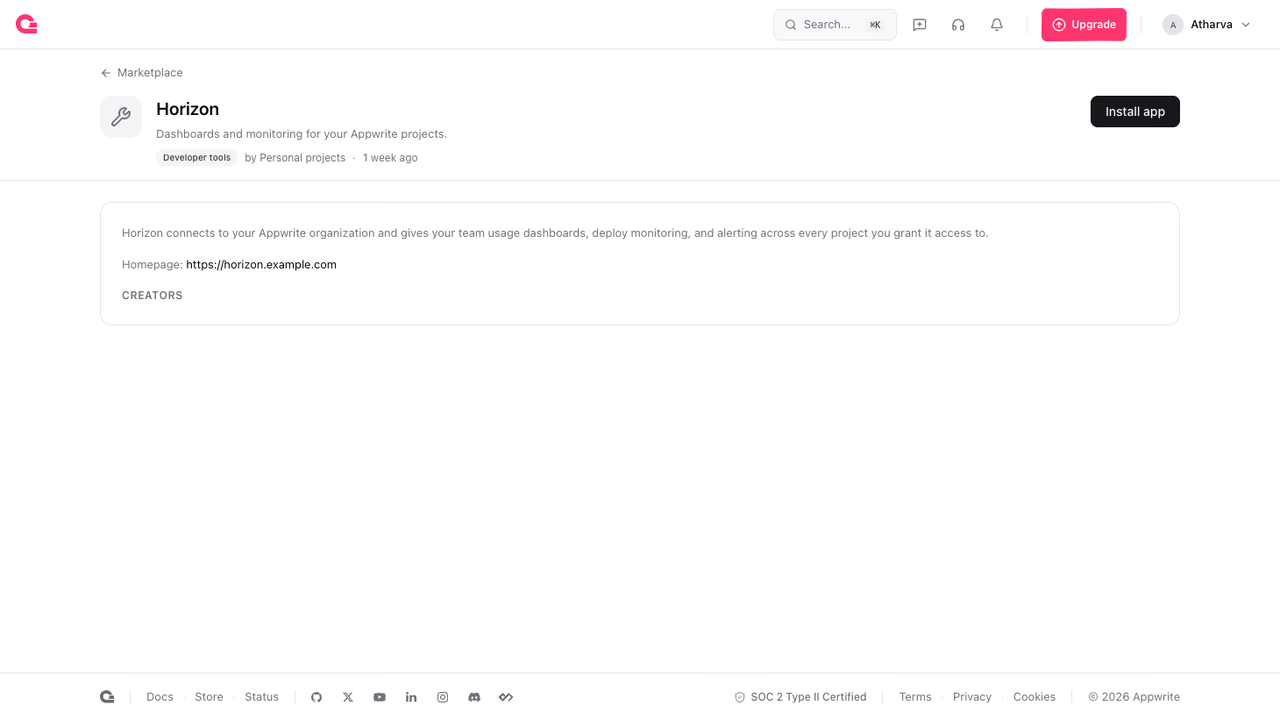
The installation copies your app's current scopes at that moment; changes you make later wait for the owner to update the installation.
When your app has an installationRedirectUrl, the owner lands there after the install. Use that page to finish setup: read the new installation from your list, store its ID, and show the owner what happens next.
App keys
Your app authenticates its installation calls with an app key. Create one on your app's settings in the Console. The secret appears once, at creation; store it in your deployment environment right away. Appwrite keeps a hint, the secret's last six characters, so you can tell keys apart later.
App keys carry no scopes of their own. A key proves that a call comes from your app, and each installation decides what that call may do. Send the key in the X-Appwrite-Key header together with your app's ID in the X-Appwrite-App header.
Store the secret like a password. Anyone who holds it can mint tokens for every installation of your app.
List your installations
Your app can list where it is installed, with standard queries for filtering and pagination:
The response wraps the records in an installations array with a total count. Each record carries its organization, the granted scopes, and who installed it. The lastAccessedAt timestamp shows when your app last minted a token for it:
{ "total": 1, "installations": [ { "$id": "6a5f09b1000c2d4e8f31", "$createdAt": "2026-08-05T09:30:00.000+00:00", "$updatedAt": "2026-08-05T09:30:00.000+00:00", "appId": "<APP_ID>", "teamId": "<ORGANIZATION_ID>", "scopes": ["organization:projects.read", "project:databases.read"], "authorizationDetails": [{ "type": "project", "identifiers": ["*"] }], "createdById": "6a150ace003bc4c2919e", "createdByName": "Walter O'Brien", "lastAccessedAt": null } ]}Mint an installation token
Exchange your app key for an access token bound to one installation:
The response is a standard OAuth2 token response. The refresh_token field comes back empty and id_token comes back null; only user consent grants carry those:
{ "access_token": "eyJ0eXAiOiJhdCtqd3QiLCJhbGciOiJSUzI1NiJ9...", "token_type": "Bearer", "expires_in": 3600, "refresh_token": "", "scope": "organization:projects.read project:databases.read", "authorization_details": [ { "type": "project", "identifiers": ["*"] }, { "type": "organization", "identifiers": ["<ORGANIZATION_ID>"] } ], "id_token": null}Three things to know about this token:
- It acts as the installation, not as a user. The token's
subclaim is the installation ID, and itsclient_idis your app. - It is pinned to the installed organization. Appwrite writes the
organizationentry inauthorization_detailsitself. A token can never reach beyond the organization that installed your app. - There is no refresh token. Tokens last 1 hour by default. When one expires, mint another; the installation record is the durable grant, so no consent or renewal step exists. Several tokens can be active at once, so each worker of your backend can hold its own.
Use it as a bearer token, the same way as any Sign in with Appwrite access token. It works on every granted project, and on the organization APIs that the scopes cover:
To find each granted project's region endpoint, list the projects with the token and read the endpoint field, as the tokens page shows.
Updates and removal
The organization owner stays in control after the install.
- Update. The owner refreshes the installation in the Console, for example to accept scopes you added to your app, or to change the granted projects. The installation takes your app's current scopes, and Appwrite revokes every active token for it.
- Removal. The owner uninstalls your app in the Console. The grant and every active token disappear together.
An update or a removal revokes tokens immediately. When a token stops working, mint a fresh one. When the mint also fails, the installation is gone, and your app should mark that organization as disconnected.
Appwrite emits an event for each step of the lifecycle, so your app can react through webhooks:
| Event | When |
|---|---|
teams.[teamId].installations.[installationId].create | An owner installed your app |
teams.[teamId].installations.[installationId].update | An owner refreshed the grant |
teams.[teamId].installations.[installationId].delete | The installation was removed |
Errors
Your app's list and token calls can return these errors:
| Error | Cause |
|---|---|
app_installation_not_found | The installation ID does not exist, or it belongs to another app. The owner may have uninstalled your app. |
app_not_found | The app ID in the path does not match the X-Appwrite-App header. |
app_key_invalid | The X-Appwrite-Key header does not hold a valid app key for this app. |
Was this page helpful?
Share what worked or what we should fix. Once approved, our agents automatically apply suggested updates to the docs.