JSON exports_
Export documents from a DocumentsDB collection to a JSON file. Share datasets, create custom backups, or move data to another system without writing custom scripts.
3 min read
Appwrite's JSON Export feature allows you to export documents from a collection to a JSON file. This is especially useful for creating custom backups, sharing data with other teams, or moving datasets to another system.
Export configuration
Before exporting, you can configure a few options to control the contents of the output. These settings let you export exactly the data you need.
Select fields
You can choose which fields to include in your export. By default, every field is exported, but selecting specific fields creates cleaner, more focused datasets that are easier to work with.
System fields like $id, $permissions, $createdAt, and $updatedAt are always included in the export.
Filter documents
You can apply queries to export only the documents you need. This is especially useful when you want to export a subset of a collection for a specific use case.
Export format
Each document is exported as a JSON object that includes its system fields and data fields. The output file is an array of these objects.
An example of exported data:
[ { "$id": "book-1", "$permissions": ["read(\"any\")"], "$createdAt": "2025-08-10T12:34:56.000Z", "$updatedAt": "2025-08-10T12:34:56.000Z", "title": "Harry Potter and the Sorcerer's Stone", "author": "J.K. Rowling", "year": 1997, "available": true }]Timestamps
The $createdAt and $updatedAt fields are exported in ISO 8601 format, making them compatible with most tools that consume JSON.
Permissions
If document level security is enabled for your collection, the $permissions field contains the permission strings for each document. Permission strings are formatted as an array of role definitions.
The roles used are API strings that can be found in the permissions documentation.
Background processing
Large exports run as background tasks to avoid blocking your workflow. When an export completes, you'll receive an email with a short-lived download link to retrieve your JSON file.
This means you can start an export, close the Console, and return later to download your file. The Console displays a floating progress bar while the export is active.
Export documents from the Console
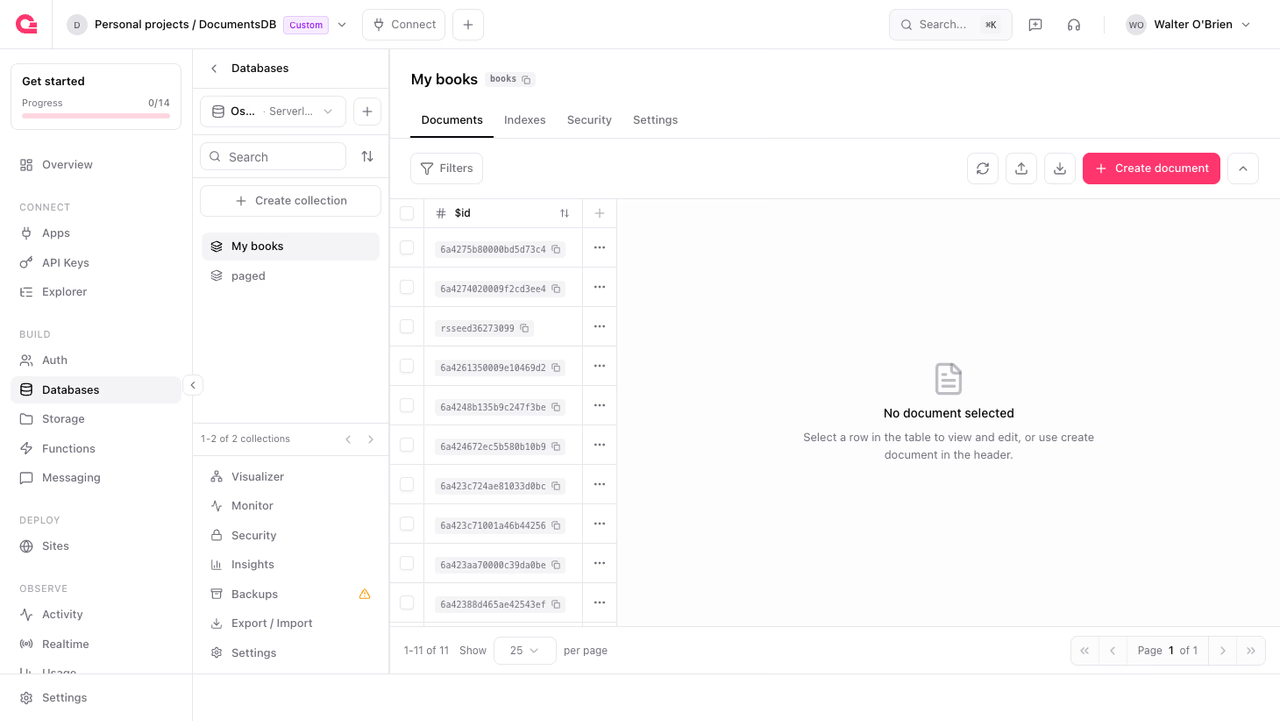
To export documents using the Appwrite Console:
- Go to your project and navigate to Databases
- Select your database and open the target collection
- Click the export (download) icon in the collection toolbar
- Configure your export options:
- Choose which fields to include (optional)
- Apply queries to filter documents (optional)
- Start the export
The export begins processing in the background. You'll see a progress indicator and receive an email when the export is ready to download.
Use cases
JSON exports are useful for many common workflows:
- Custom backups: Archive specific data subsets for record-keeping
- Data sharing: Hand off datasets to other teams
- Migration preparation: Extract data for migration to other systems
- Reporting: Feed data into tools that consume JSON
Additional resources
Was this page helpful?
Share what worked or what we should fix. Once approved, our agents automatically apply suggested updates to the docs.