Worker topologies_
Choose between the combined and separate worker topologies for your self-hosted Appwrite instance. Learn which containers each topology runs and when to use each one.
4 min read
Appwrite uses queue workers and schedulers to process background work like sending emails, running builds, issuing TLS certificates, and executing functions. A topology defines how these run: either a single container that consumes every queue, or one container per queue.
Appwrite supports two topologies:
- Combined runs all workers in one container and all schedulers in another. This is the default and the recommended choice for most installations.
- Separate runs one container per queue and one container per scheduler, so you can scale and monitor each queue independently.
Both topologies process the same queues with the same behavior. The choice only affects how many containers your instance runs and how you scale them.
Combined topology
The combined topology runs two containers alongside the rest of the Appwrite stack:
| Container | Role |
|---|---|
appwrite-worker | Consumes every queue in a single process. Each queue gets its own pool of coroutines, so a busy queue doesn't block the others. |
appwrite-task-scheduler | Runs the function, execution, and message schedulers in one process. |
This is what starts when you install Appwrite or bring up the stack with the default configuration:
docker compose up -dThe combined topology uses fewer containers and less memory, and gives you one place to read worker logs:
docker compose logs -f appwrite-workerSeparate topology
The separate topology replaces appwrite-worker with one container per queue, and appwrite-task-scheduler with one container per scheduler:
| Workers | Schedulers |
|---|---|
appwrite-worker-webhooks | appwrite-task-scheduler-functions |
appwrite-worker-deletes | appwrite-task-scheduler-executions |
appwrite-worker-databases | appwrite-task-scheduler-messages |
appwrite-worker-builds | |
appwrite-worker-jobs | |
appwrite-worker-screenshots | |
appwrite-worker-certificates | |
appwrite-worker-executions | |
appwrite-worker-functions | |
appwrite-worker-mails | |
appwrite-worker-notifications | |
appwrite-worker-messaging | |
appwrite-worker-migrations |
In Appwrite's docker-compose.yml, these services sit behind the separate Compose profile. To run the separate topology from a manual installation, include the override file and enable the profile:
docker compose -f docker-compose.yml -f docker-compose.separate.yml --profile separate up -dThe docker-compose.separate.yml override hides the combined containers so the two topologies don't run at the same time.
Never run the combined and separate containers together. Both consume the same queues, so each job would race between two consumers.
The maintenance and interval tasks run as their own containers in both topologies.
Choosing a topology
Pick the combined topology unless you need to scale or isolate individual queues. The separate topology helps when:
- One queue, such as builds or executions, needs more replicas or dedicated resources than the rest.
- You want per-queue logs, metrics, and resource limits.
- You want to restart a misbehaving queue without touching the others.
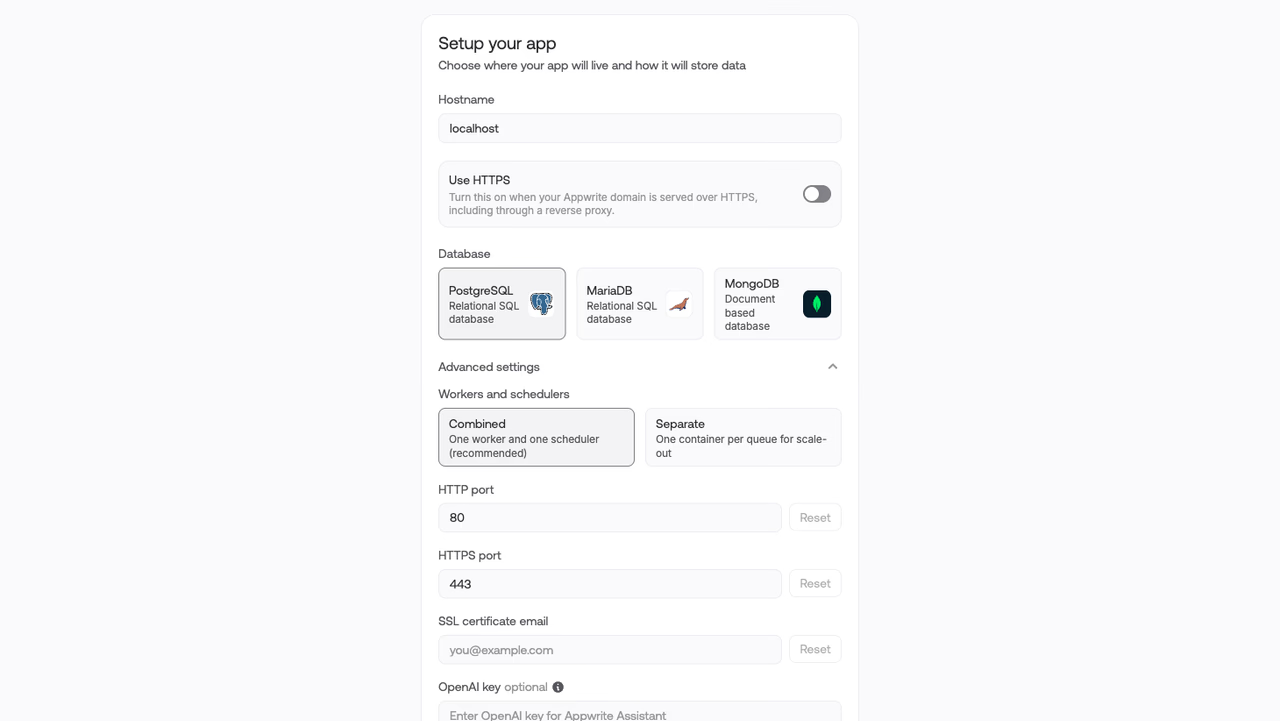
You select the topology during installation:
- Setup wizard: in Step 1, expand Advanced settings and choose an option under Workers and schedulers.
- Install command: pass
--topology=combinedor--topology=separateto the installer.
The installer writes a docker-compose.yml that only contains the services for the topology you selected. When you upgrade, Appwrite detects the topology of your existing installation from your Compose file and keeps it.
Switching topologies
To switch an existing installation, run the upgrade command with the --topology parameter from the directory that contains your appwrite folder:
docker run -it --rm \ --volume /var/run/docker.sock:/var/run/docker.sock \ --volume "$(pwd)"/appwrite:/usr/src/code/appwrite:rw \ --entrypoint="upgrade" \ appwrite/appwrite:<APPWRITE_VERSION> \ --topology=separateThis rewrites your docker-compose.yml with the other topology's services and restarts the stack. Your data is not affected. The upgrade command also moves your installation to the version of the image you run. To switch topology without upgrading, use the version your installation is already on.
Worker concurrency
Each queue has its own concurrency limit. The databases, mails, notifications, messaging, and migrations queues process one job at a time. The rest process up to 8 jobs concurrently.
The _APP_WORKER_MAX_COROUTINES environment variable adjusts these limits. In the combined worker it sets the size of the coroutine pool shared by all queues. In a separate topology worker it overrides that queue's own limit. The databases worker always processes one job at a time regardless of this setting.
Was this page helpful?
Share what worked or what we should fix. Once approved, our agents automatically apply suggested updates to the docs.