---
layout: article
title: Deploy a Vanilla JS app to Appwrite Sites
description: Learn how to setup and deploy Vanilla JS apps on Appwrite Sites.
---
## 1. Create web app
Open your terminal, and run the following command.
```bash
mkdir my-app
cd my-app
```
In this directory, create two files with the following code:
- `index.html`
```html
Demo App
```
- `app.js`
```js
row.querySelector("button").addEventListener("click", () => {
alert("Hello World!");
});
```
Push this project to a [GitHub repository](https://github.com/new).
## 2. Create Appwrite project
Head to the [Appwrite Console](https://cloud.appwrite.io).
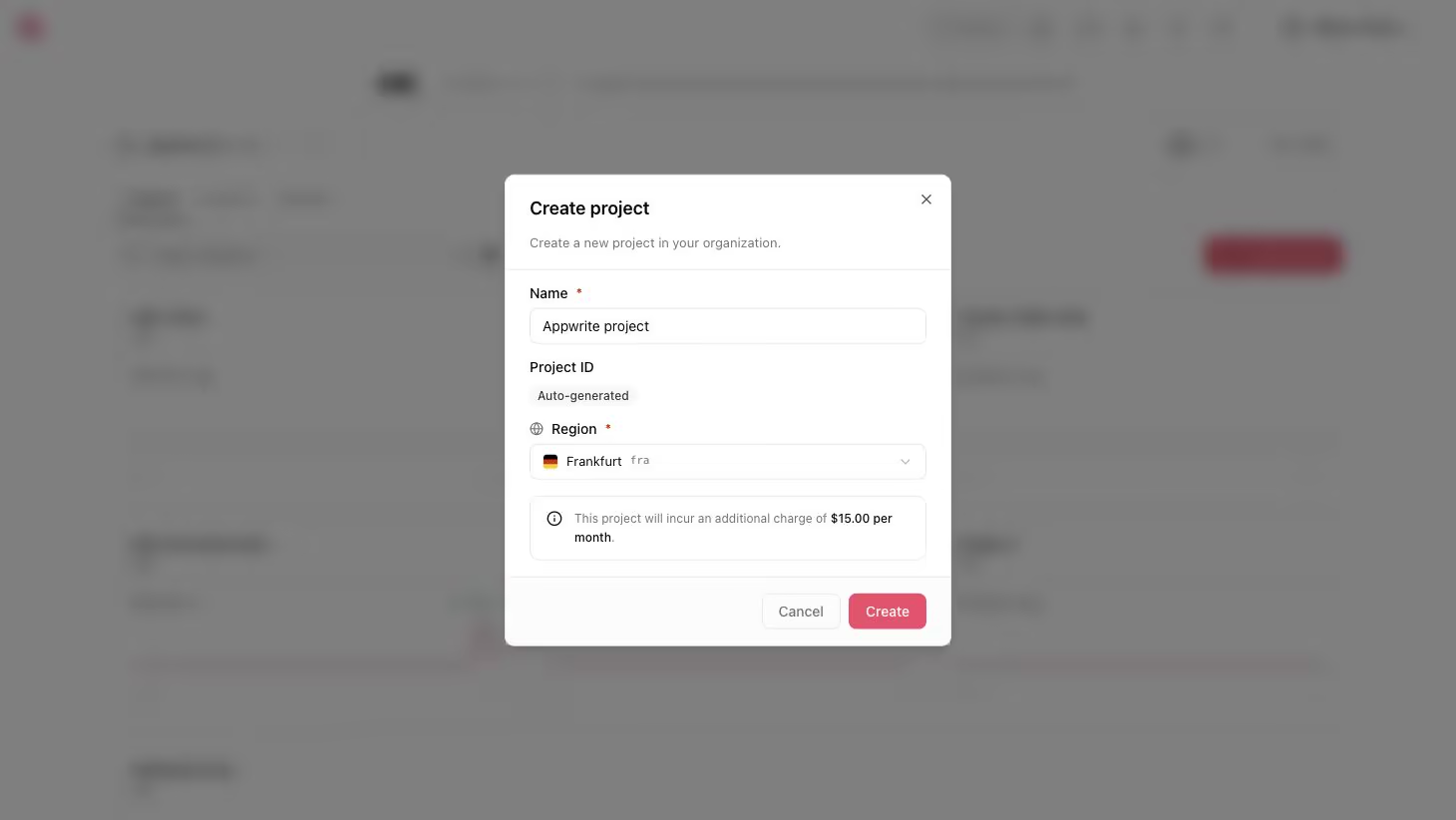
If this is your first time using Appwrite, create an account and create your first project.
## 3. Create site
Head to the **Sites** page in your Appwrite project, click on the **Create site** button, and select **Connect a repository**.
Connect your GitHub account and select the repository you intend to deploy (or allow all repositories, for future ease).
1. Select the **production branch** and **root directory** from your repo.
2. Verify that the **correct framework** is selected. In case an incorrect framework is visible, pick **Other** from the drop-down list.
3. Confirm the **install command**, **build command**, and **output directory** in the build settings. The build settings for this app will be:
- **Install command:** `N/A` (leave empty, unless you have installed any external packages)
- **Build command:** `N/A` (leave empty, unless you have installed any external packages)
- **Output directory:** `./`
4. Add any **environment variables** required by the site. This is not necessary if you're deploying the starter app.
Click on the **Deploy** button.
## 4. Visit site
After successful deployment, click on the **Visit site** button.